How to Use the Webcam Test
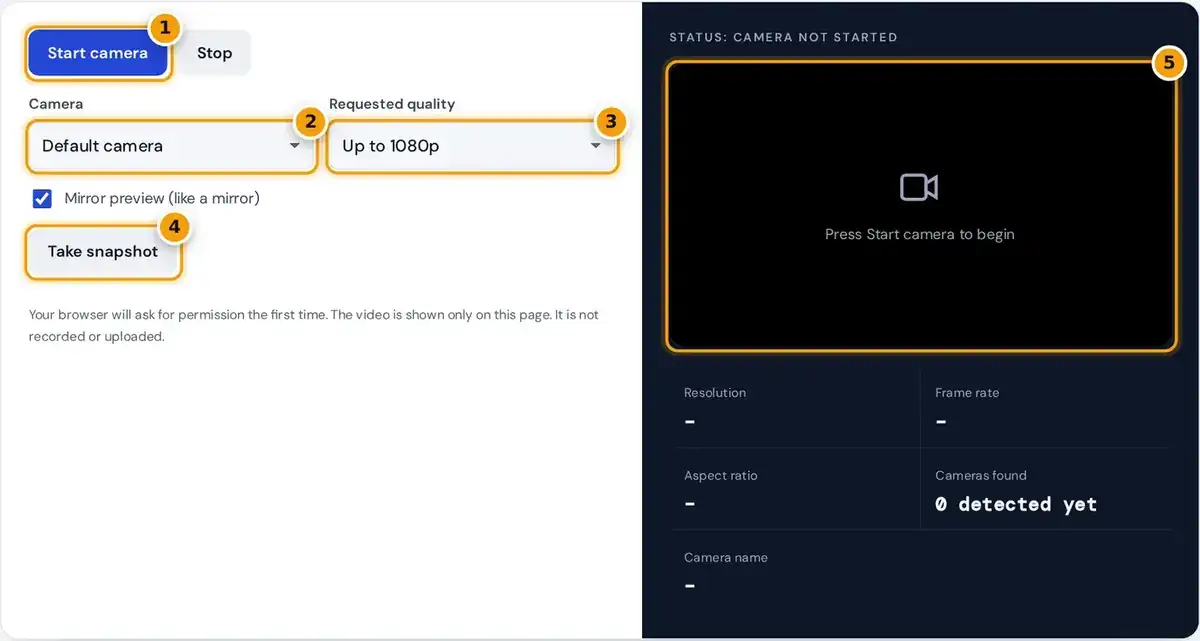
- Press Start camera and allow access when your browser asks.
- Choose which camera to test if you have more than one.
- Pick the quality to request, from 480p up to 4K.
- Take a snapshot to check sharpness and color.
- Watch the live preview and read the resolution, frame rate and aspect ratio below it.
Press Start camera and choose Allow when your browser asks for permission. A live preview of you appears within a second or two, and the status line changes to Camera working once the video arrives.
Under the preview you see the resolution, frame rate, aspect ratio, number of cameras found and the camera name. Change the requested quality to check whether your camera supports 720p, 1080p or even full 4K.
If you have several cameras, pick one from the Camera menu and the test restarts with it. Press Take snapshot to capture a still image, then download it if you want to keep a copy.
Understanding Resolution, Frame Rate and Aspect Ratio
Resolution is the width and height of the video in pixels. A 720p camera sends 1280 by 720 pixels, a 1080p camera sends 1920 by 1080, and a 4K camera reaches 3840 by 2160 pixels.
Frame rate, shown in fps, is how many new frames arrive each second. Around 30 fps looks smooth on video calls, while 60 fps is very fluid and mostly matters for streaming or fast motion.
Aspect ratio is the shape of the picture. Most modern webcams use 16:9 widescreen, while older or budget models often use 4:3, which looks squarer and may show black bars at the sides in apps.
| Measure | What it means | Typical values |
|---|---|---|
| Resolution | Width and height of the video in pixels | 1280 × 720 (720p), 1920 × 1080 (1080p) |
| Frame rate | New frames received each second | 30 fps standard, 60 fps very smooth |
| Aspect ratio | Shape of the picture | 16:9 widescreen, 4:3 on older cameras |
How the Test Measures Your Camera
The frame rate is measured live by counting frames as they reach the page. That shows what your camera actually delivers right now, not only the figure the camera claims to support in its specifications.
aspect ratio = width ÷ gcd(width, height) : height ÷ gcd(width, height)
The aspect ratio divides the width and height by their greatest common divisor. For 1280 by 720 pixels the common divisor is 80, so the ratio becomes 16 to 9, which the test labels 16:9.
If the page receives 58 frames in 2.0 seconds, the frame rate is 29 fps. That is normal for a camera set to 30 fps in dim light, because it slows to gather more light.
How to Allow Camera Access
If the browser permission was denied, click the camera or lock icon in the address bar, set Camera to Allow, then press Start camera again. You can also change this in the browser site settings.
On Windows, open Settings, then Privacy & Security, then Camera, and make sure camera access and desktop app access are switched on. Otherwise the browser cannot reach the camera, even when you have granted it permission.
On a Mac, open System Settings, choose Privacy & Security in the sidebar, then click Camera, and turn access on for the browser you use, exactly as described in the official Apple guide to camera access.
Webcam Not Working? Try These Fixes
A camera busy error means another app is using it. Only one app can use most webcams at a time, so close Zoom, Teams, FaceTime or the Camera app, then try the test once again.
If no camera is found, reconnect a USB webcam or try another USB port. On a laptop, check that the privacy shutter is open and that any camera key on the keyboard is switched on.
A black screen often comes from a lens cover or a stuck driver. Restart the browser first, and if the problem stays, update or reinstall the camera driver through the manufacturer website or Device Manager.
Why Does My Webcam Look Flipped?
Most video apps show a mirrored preview because it matches what you see in a bathroom mirror. Raising your right hand moves the image on the right, which feels natural when you adjust your hair.
The other people on a call see the un-mirrored image, so text on a shirt or a poster behind you reads correctly for them. Only your own preview is flipped, never the video they receive.
Untick Mirror preview to see yourself the way others do. Snapshots follow the same setting, so turn mirroring off before you take a picture of a document or a whiteboard you want others to read.
Testing Laptop, External and Phone Cameras
A laptop webcam is usually the default camera. If you also plug in an external webcam, the Camera menu lists both, so you can compare them and choose the better one for your next call.
On a phone or tablet, the Camera menu usually switches between the front camera and the back camera. Camera names appear only after you allow access, because browsers hide device details until permission is granted.
If the reported resolution is lower than the box promises, the camera, the cable or the USB connection may not support it. Choose Up to 4K to see the highest resolution the camera will deliver.
Tips for a Better Webcam Picture
Good lighting matters far more than resolution. In low light, cameras lower the frame rate and add grain, so face a window or lamp, and avoid bright light behind you that turns your face dark.
Place the camera at eye level, roughly an arm's length away. Looking slightly up at the lens gives a natural view, while a laptop on a desk often shows the ceiling and an unflattering angle.
If the picture looks blurry, wipe the lens with a soft cloth and give autofocus a moment to adjust. A clean lens and a lamp in front of you fix most poor quality webcam pictures.
Privacy and Security
This test uses the browser's standard getUserMedia interface, defined in the W3C Media Capture and Streams specification, the same interface used by video calling sites. It only runs on secure https pages, protecting your stream.
The video is shown on this page only. It is not recorded, uploaded or stored, and the camera turns off when you press Stop or close the tab, which also turns off the camera light.
You can revoke camera permission for this site at any time in your browser site settings. If a camera light turns on when you are not using any app, check which programs have camera access.
Frequently asked questions
How do I know if my webcam is working?
Press Start camera and allow access. If a live picture appears, the status says Camera working and the frame rate is above zero, your webcam is working and ready for video calls.
Is this webcam test private?
Yes. The video is shown only on this page in your browser. Nothing is recorded, saved or uploaded, and the camera turns off when you press Stop or close the tab.
Why is my webcam blocked?
The browser or operating system may be denying permission. Allow the camera from the address bar and in your system privacy settings, close other apps using it, then press Start camera again.
What resolution is my webcam?
Start the camera and read the Resolution value under the preview. Choose Up to 4K in the quality menu to see the highest resolution your camera and connection can deliver.
Why is my webcam image mirrored?
Previews are mirrored so they feel natural, like looking in a mirror. Other people on a call see the un-mirrored view. Untick Mirror preview to check how you appear to them.
Why is my webcam frame rate low?
Webcams slow down in dim light to collect more light for each frame. Turn on a lamp facing you, close other camera apps and choose a lower quality if the frame rate stays low.