How to Use the Keyboard Test
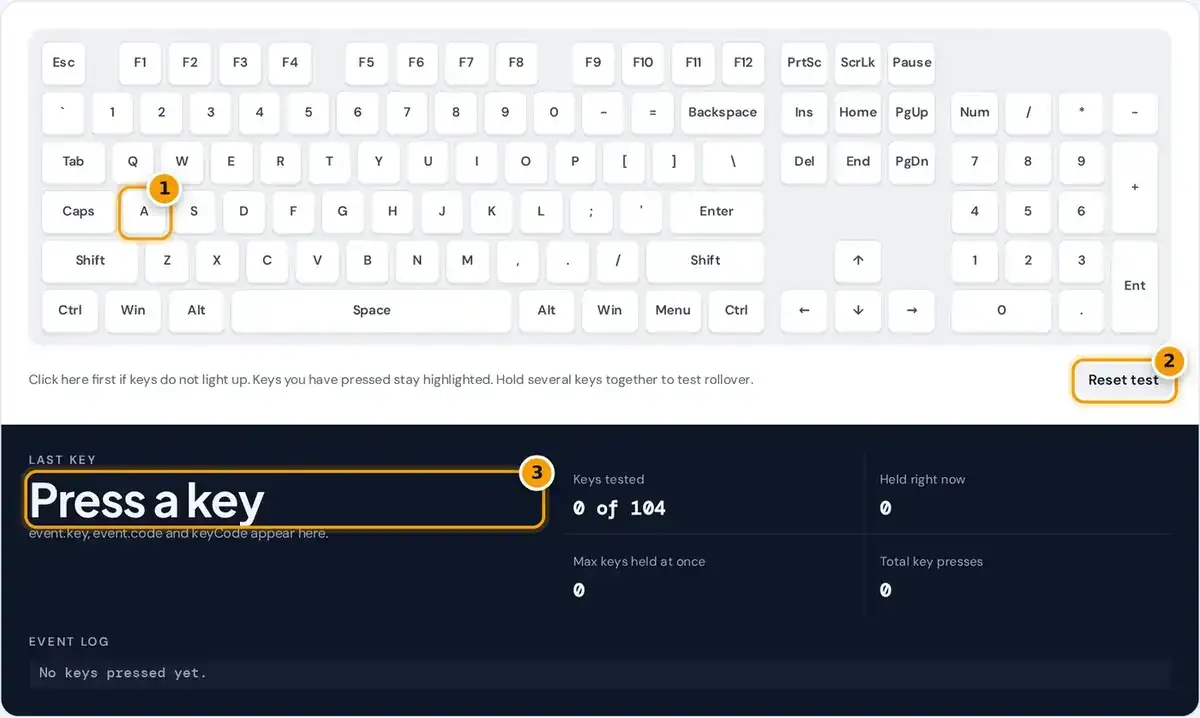
- Click the keyboard, then press every key. Tested keys stay highlighted.
- Press Reset test to clear the highlights and start again.
- Read the last key's event.key, code and keyCode, plus keys tested and the most held at once.
Click the virtual keyboard once so the page has focus, then press each key on your keyboard. Every working key lights up while held and stay highlighted afterward, so tested keys are easy to spot.
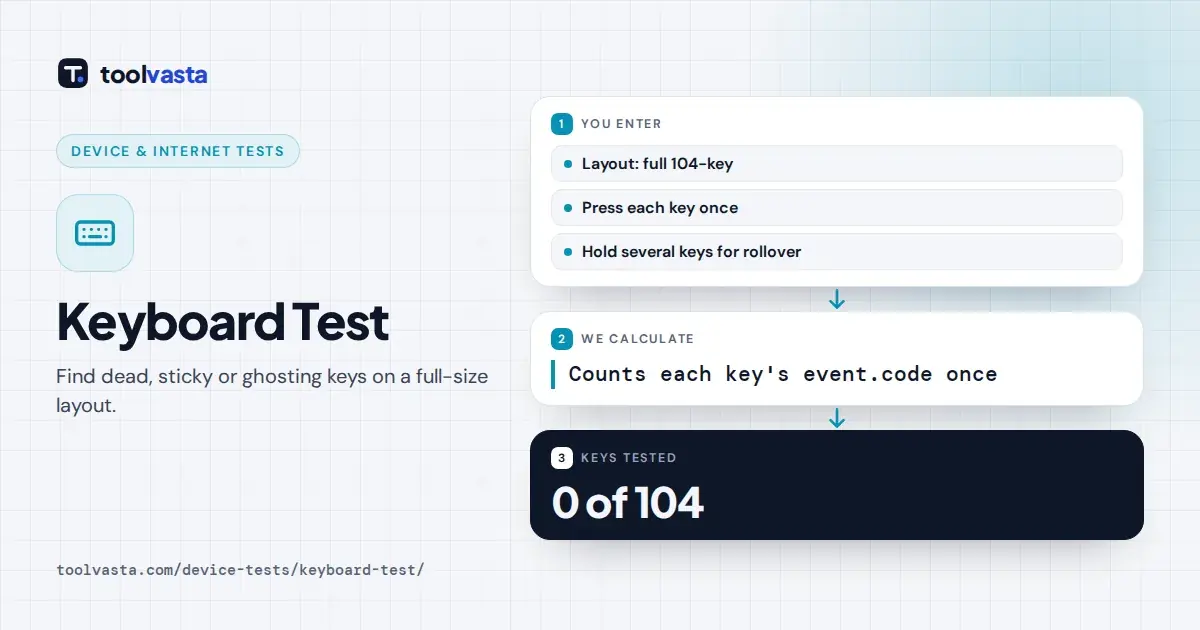
The Keys tested counter compares your progress with the 104 keys of a standard full-size layout. A key that stays dark when pressed, or lights up without being pressed, points to a fault worth checking.
Use Reset test to clear everything and start again, for example when you move on to a second keyboard. This keyboard tester needs no download, sign-up or driver, and works in any modern desktop browser.
Reading the Event Log
The last key panel and the event log show exactly what your web browser receives. Each entry lists event.key, the character or key name, and event.code, which identifies the physical key position on the board.
The key value changes with your language layout, so one physical key can print Z on one keyboard and Y on another. The code stays the same, which helps developers test shortcuts on international layouts.
The log also shows the legacy keyCode number and whether a key sits on the left and right side of the board or on the numpad. Codes follow the W3C keyboard event code values specification.
Key Rollover and Ghosting
ghosting = a key lights up that you are not pressing
blocking = a key you press does not light up while others are held
Key rollover is how many keys a keyboard can register at the same time. Hold several keys together and watch the Held right now and Max keys held at once counters as you add fingers.
Many office keyboards guarantee only 2KRO for letter keys, while a gaming keyboard often offers 6-key rollover or n-key rollover, known as NKRO, where every key is detected independently regardless of how many are held.
Ghosting is when a keyboard reports a key you did not press. Blocking, or jamming, is when it ignores a key because too many are held. Both come from the wiring grid inside cheaper keyboards.
Worked Example
Hold Shift and press A. The log shows Shift first, then A, and Max keys held reads 2. That simple check confirms both keys work and that the keyboard handles an ordinary two key combination.
Now hold W, A, S, D and Space together, a typical movement combination in games. A keyboard with 6-key rollover shows 5 held keys, and all five keys light up on the screen at once.
If the counter stops at 3 or 4 and one key stays dark, your keyboard blocks that combination. Try the exact combinations you use in your favorite games, because blocking patterns differ between keyboard models.
Stuck Keys, Double Typing and Dead Keys
A stuck key stays lit in the Held right now counter after you let go. Tap it several times, then check whether the counter returns to zero; if not, the switch or keycap is catching.
Double typing, also called chatter, happens when one press registers twice. Press a suspect key once and look at the event log: two down entries for a single press mean the switch is bouncing badly.
A dead key does not light up at all. If a key seems unresponsive only here, click the keyboard area to restore focus, since the page cannot see key presses while another window is active.
Keys That Are Hard to Test in a Browser
| Key | Why |
|---|---|
| Fn | Handled inside the keyboard and never sent to the computer |
| Print Screen | Windows often only sends the release, so it lights up when you let go |
| Windows / Command | The operating system may open a menu before the page sees the key |
| Media and brightness keys | Usually handled by the system; they appear in the log if the browser receives them |
| F11, Alt+Tab, Ctrl+W | Reserved by the browser or system; a few shortcuts cannot be blocked |
The Fn key is handled inside the keyboard and never reaches the computer, so no website can detect it. You can test it indirectly by pressing Fn with the function keys and watching the log.
Print Screen often sends only its release on Windows, so it lights up when you let go. The system may grab the Windows or Command key, and media keys usually go straight to the system.
Some browser shortcuts, such as F11 and Ctrl+W, are reserved and cannot be blocked by any page. The table above lists these exceptions, so a dark key in that list is not necessarily broken hardware.
Laptop, Compact and Wireless Keyboards
A laptop keyboard has no number pad and often no separate navigation block, so those keys are expected to stay dark. The counter still counts toward 104 keys, which only a full-size layout can reach.
Compact boards such as a tenkeyless (TKL) model drop the numpad, and a 60% board also removes the function row and arrow cluster, reaching those keys through layers. Test each layer while holding its modifier.
A wireless keyboard, whether using a USB receiver or Bluetooth, can miss presses when batteries run low or the signal is weak. A mechanical keyboard with a single dead key usually has a faulty switch.
If a Key Does Not Work
Start with the simple checks. Unplug the keyboard or turn it off, turn it upside down and use compressed air around the problem key to clear crumbs and dust that stop the switch from closing.
Next, try a different USB port or another computer. If the key works elsewhere, the problem is the port, a driver or a software setting such as Filter Keys, rather than the keyboard hardware itself.
For wireless models, charge or replace batteries and re-pair the connection. On a hot-swap mechanical board you can reseat the switch; soldered boards may need repair. Key presses here are never recorded or sent anywhere.
Frequently asked questions
How do I check if all my keyboard keys are working?
Click the test area and press every key once. Each working key lights up and stays highlighted, and the Keys tested counter shows how many of the 104 keys on a full-size layout have responded.
What is n-key rollover?
N-key rollover (NKRO) means the keyboard detects every key independently, no matter how many are held at once. Hold several keys here and the Max keys held at once counter shows how many register together.
What is keyboard ghosting?
Ghosting is when the keyboard reports a key you did not press while several others are held. It is caused by the wiring grid in some keyboards, and gaming models with anti-ghosting avoid it.
Why does the Fn key not light up?
The Fn key is handled inside the keyboard itself and is never sent to the computer, so no website can detect it. Test it by pressing Fn with a function or media key instead.
What is the difference between key and code?
The key value is the character produced, which changes with your language layout. The code identifies the physical key position, such as KeyA, and stays the same whatever layout your system uses.
Does this keyboard test record what I type?
No. Key presses are processed only on this page and are not stored or sent anywhere. The log keeps just the last 30 events and is cleared when you reset the test or leave the page.