How to Use the Microphone Test
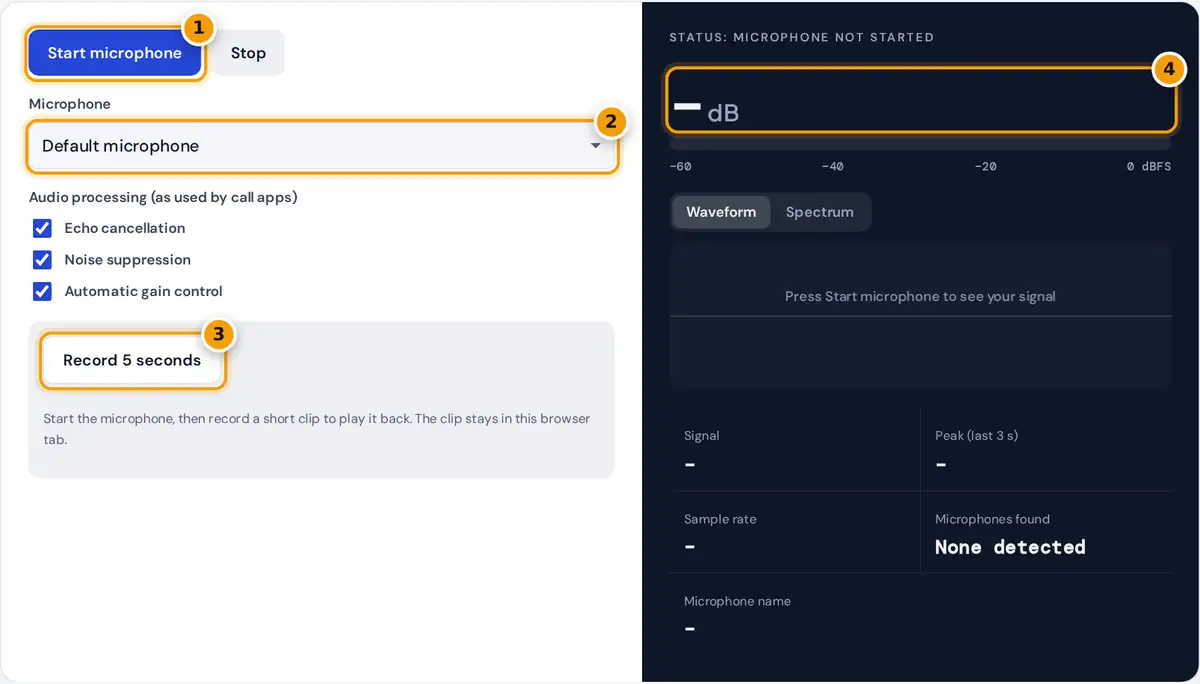
- Press Start microphone and allow access when your browser asks.
- Pick the microphone you want to test if you have more than one.
- Record 5 seconds and play it back to hear how you sound.
- Speak normally and watch the level in dB. Good speech peaks well below 0 dBFS without clipping.
Press Start microphone and choose Allow when the browser permission prompt appears. This microphone test online works in Chrome, Edge, Firefox and Safari on desktop and mobile, with no software to install or account needed.
Speak at your normal volume. The level meter and the large dB figure should move with your voice, and the waveform should show peaks. Silence leaves a nearly flat line and a very low reading.
Press Record 5 seconds, say a sentence, then play back the clip to hear how you sound. You can also download the recording as a WebM file to compare microphones or share it with support.
Reading the Level Meter in Decibels
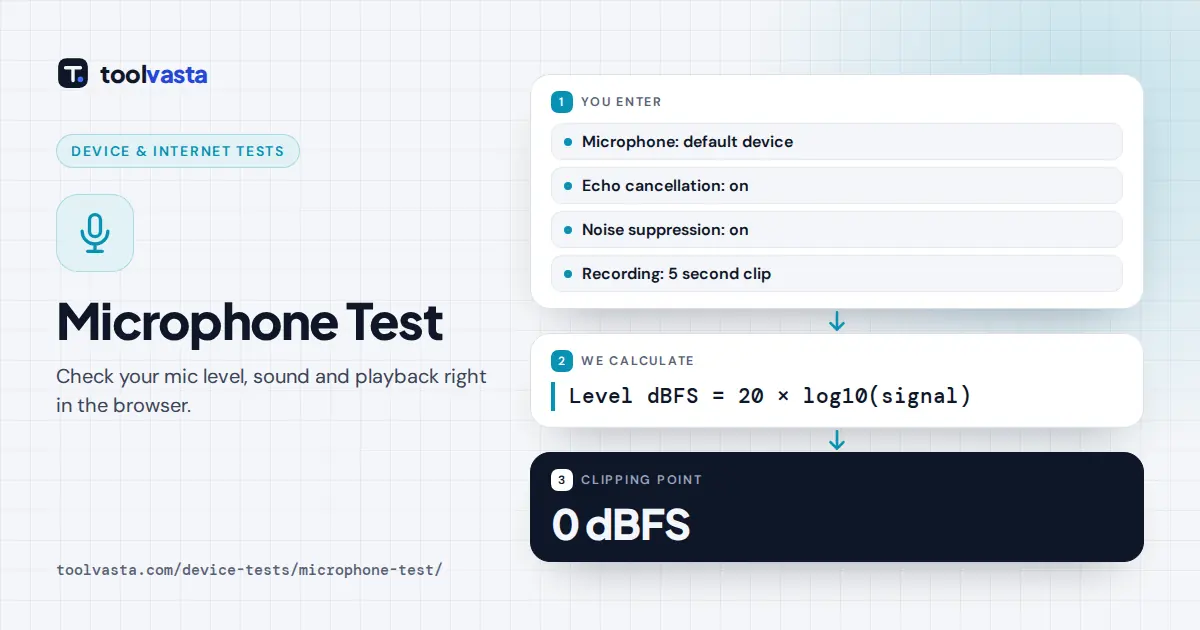
Levels are shown in dBFS, meaning decibels relative to full scale. Zero dBFS is the loudest signal your device can capture without distortion, so every quieter level appears as a negative number on the meter.
Peak level (dBFS) = 20 × log10(largest absolute sample)
The large figure is the RMS level, the white marker holds the recent peak level, and Peak (last 3 s) shows the loudest moment. For example, an RMS value of 0.1 reads minus 20 dBFS.
Peaks between about minus 30 and minus 1 dBFS count as a good level for speech. Above that you risk clipping, so lower the input volume slightly. These bands are practical guidance, not a standard.
| Peak level | Signal reading | What to do |
|---|---|---|
| Below −50 dBFS | No sound detected | Check mute switches, the selected device and input volume |
| −50 to −30 dBFS | Quiet | Move closer or raise the input volume |
| −30 to −1 dBFS | Good level | Nothing, this suits calls and recordings |
| Above −1 dBFS | Too loud (clipping) | Lower the input volume or move back |
Echo Cancellation, Noise Suppression and Gain
The three audio processing boxes match the settings most call apps use. Echo cancellation removes sound from your speakers, noise suppression filters steady background noise, and automatic gain control evens out loud and quiet speech.
Untick all three to hear your raw microphone. If hiss or hum disappears when processing is on, the noise comes from the room or the hardware, and call apps will mostly hide it for you.
Automatic gain control raises quiet input and lowers loud input, so readings move around more when it is enabled. Turn it off to judge your true input volume and set it in your system settings.
Microphone Not Working? Try These Fixes
If you see permission denied, click the lock or microphone icon in the address bar, allow the microphone and press Start again. Also check the microphone privacy settings on Windows or macOS computers as well.
Headsets and webcams add their own microphones, so choose the right one from the Microphone menu or set it as the default input. Check for a mute switch on the cable, ear cup or keyboard.
Close Zoom, Microsoft Teams, Discord or another app that may be holding the device. A USB microphone or Bluetooth headset that still fails may need a reconnect, a computer restart or freshly updated audio drivers.
- Permission: allow the site in the browser, then in system privacy settings.
- Device: pick the correct input from the menu.
- Hardware: check mute switches, cables and batteries.
- Conflicts: close other apps using the microphone.
- Drivers: reconnect, restart or update.
Waveform and Spectrum Views
The waveform shows the raw sound wave over about 40 milliseconds. A flat line means silence, tall even peaks mean a strong signal, and peaks squashed flat against the top suggest that clipping is happening.
The spectrum view shows how much energy sits at each frequency from 50 Hz to 16 kHz on a logarithmic scale. Most speech energy falls between about 100 Hz and 4 kHz, the key range.
A strong, steady peak at 50 Hz or 60 Hz, or their multiples, often points to electrical hum from a nearby power supply. The stats panel also lists the sample rate your device is using.
Getting Better Sound for Calls
Keep the microphone about a hand span from your mouth and slightly to one side, which noticeably reduces breath noise. Use headphones during calls so the microphone cannot pick up your speakers and cause feedback.
A laptop microphone sits close to the keys, so it collects keyboard noise and room echo. A headset or USB microphone usually sounds clearer on Zoom or Microsoft Teams than any software setting can achieve.
Soft furnishings, curtains and a closed door reduce room echo. Test again after each change and compare playback clips, because your own ears judge clarity far better than any meter that measures only signal level.
Privacy and How the Test Works
The test uses your browser's standard media capture interface, defined in the W3C Media Capture and Streams specification, to open the exact microphone you choose, but only after you grant permission to this specific page.
Sound is analyzed in your browser with the Web Audio API. Nothing is ever uploaded or stored on a server, and the meter, waveform and spectrum are all calculated locally on your own device instead.
Your 5 second clip stays in page memory until you leave or record again. You can remove the site's microphone permission at any time from the browser's site settings, which also stops future automatic access.
Frequently asked questions
How do I know if my microphone is working?
Press Start microphone, allow access and speak. If the level meter moves and the Signal reading shows Good level while you talk, your microphone is working and the browser can hear it.
Why is my microphone so quiet?
The input volume may be low, the wrong device may be selected, or you may be too far away. Raise the input volume in your system sound settings and move to about a hand span away.
How can I test my microphone and hear myself?
Press Record 5 seconds, speak a sentence, then press play to listen to the clip. Wear headphones while listening if you hear an echo, and download the clip if you want to keep it.
What is a good microphone level?
For speech, peaks between about minus 30 and minus 6 dBFS are comfortable. Peaks near 0 dBFS can distort, so lower the input volume or move back if the meter shows clipping.
Why can't I see my microphone in the list?
Device names appear only after you allow access. If a microphone is still missing, reconnect it, check that it is enabled in your system sound settings, and update its audio drivers if needed.
Is this microphone test private?
Yes. Audio is processed in your browser only. The recording stays in page memory until you leave or record again, and it is never uploaded to a server or shared with anyone.