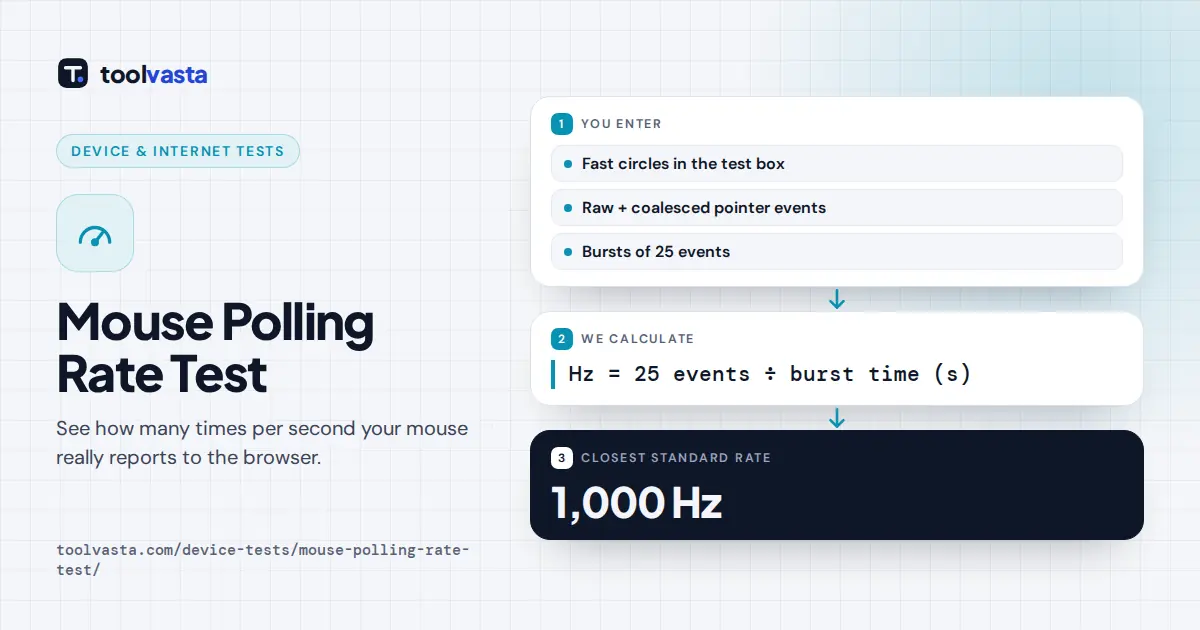
How to Use the Mouse Polling Rate Test
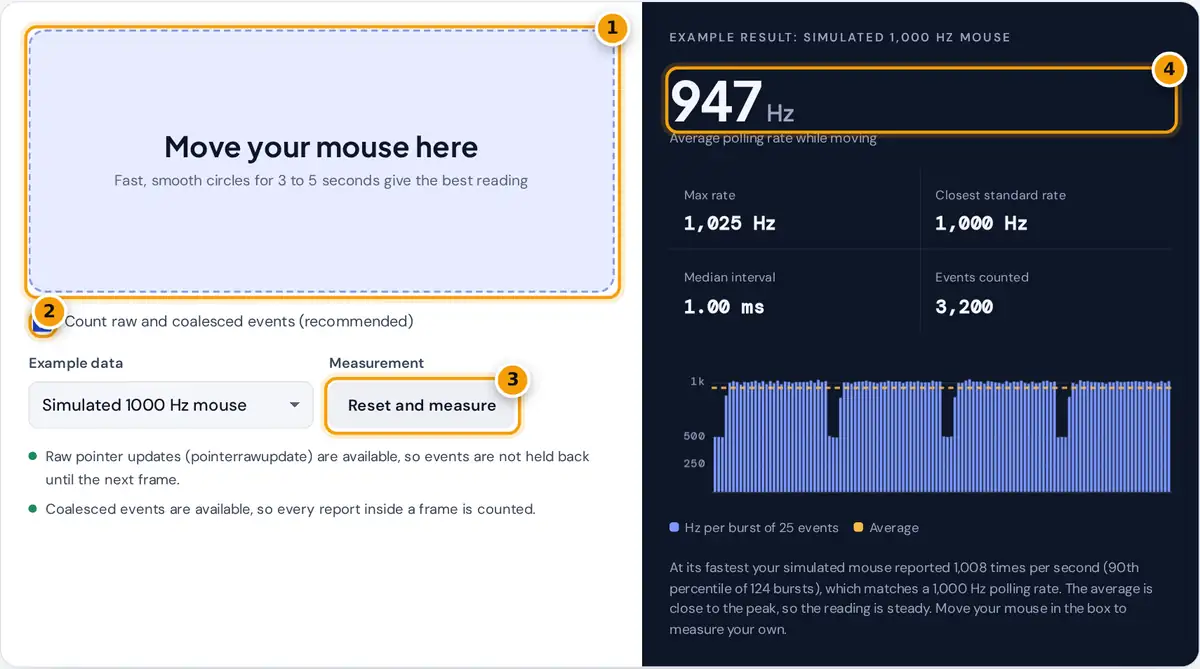
- Move your mouse quickly in large, smooth circles inside the box for 3 to 5 seconds.
- Keep raw and coalesced events on so every report counts, not just one per screen frame.
- Press Reset and measure after changing the rate in your mouse software, or compare a simulated example.
- Read your average Hz, max rate and closest standard polling rate, with a live chart of every burst.
Put your pointer inside the shaded box and move the mouse quickly in large, smooth circles for three to five seconds. The test starts as soon as it sees movement, and the panel updates several times a second. Keep moving: a mouse only sends a report when it has something new to say, so a slow or still mouse sends far fewer reports than its polling rate allows.
The large number is the average rate while you were moving. Max rate is the fastest burst, and Closest standard rate snaps the 90th percentile of all bursts to the nearest common setting: 125, 250, 500, 1000, 2000, 4000 or 8000 Hz. Each bar in the chart is one burst of 25 events, and the dashed line marks the average. Press Reset and measure to start again, for example after changing the rate in your mouse software. The page opens with simulated data so you can see what a result looks like; choose another example to compare a 125 Hz office mouse with a 4000 Hz gaming mouse.
How the Polling Rate Is Estimated
The polling rate is how many times per second the computer asks the mouse for its position. Each answer becomes a pointer event with a high resolution timestamp. The test reads those timestamps in two ways. Where the browser supports pointerrawupdate, it listens to raw updates, which are delivered as they arrive instead of once per screen frame. It also calls getCoalescedEvents(), which returns every report that was merged into a single frame. Gaps longer than 40 ms are treated as pauses and ignored.
average rate = mean of all burst rates
polling interval (ms) = 1000 ÷ polling rate (Hz)
Worked Example
Suppose 25 consecutive events span 24.8 ms. The burst rate is 25 ÷ 0.0248 = 1,008 Hz, so that burst matches a 1000 Hz mouse, which reports every 1 ms. If you slow down, the next 25 events might take 40 ms, a rate of 25 ÷ 0.040 = 625 Hz. That burst lowers the average but not the closest standard rate, because the tool uses the 90th percentile of your bursts to pick the rate. This is why fast, steady movement gives the most reliable result.
| Polling rate | Interval between reports | Typical use |
|---|---|---|
| 125 Hz | 8 ms | Basic office mice, default USB setting |
| 250 Hz | 4 ms | Older or power saving modes |
| 500 Hz | 2 ms | Many wireless and budget gaming mice |
| 1000 Hz | 1 ms | Standard for gaming mice |
| 2000 to 8000 Hz | 0.5 to 0.125 ms | High end gaming mice on high speed USB |
Browser and Operating System Limits
A web page never talks to the mouse directly. Reports pass through the USB stack, the operating system and the browser, and each step can merge, delay or drop them. Keep these limits in mind:
- Timer precision. Browsers round timestamps, typically to 0.1 ms or coarser, to protect privacy. At 4000 Hz and above, single intervals cannot be resolved, so the tool measures bursts of 25 events instead.
- Frame limited browsers. Without raw or coalesced events, a browser delivers one move event per screen frame, so you will see 60, 120 or 144 Hz whatever your mouse does. The panel says so when it happens.
- System load. Very high rates such as 8000 Hz need CPU time. A busy computer or browser tab can drop reports, so the browser may show less than the mouse sends.
- Wireless and power saving. Some wireless mice lower their rate when idle or on low battery, and a few only reach full rate with their own receiver.
For an exact answer, check the setting in your mouse software. This test shows what actually reaches your browser, which is what matters for games and apps that run in it.
Tips for a Reliable Reading
- Use a large mouse pad area and move in smooth circles rather than short jerks.
- Close other heavy tabs and apps, then run the test two or three times.
- Try Chrome or Edge on an https page if your browser shows that raw updates are missing.
- Connect wired, or put a wireless receiver close to the mouse, before testing high rates.
Frequently asked questions
What is a good mouse polling rate?
For most people 1000 Hz is the sweet spot: one report every millisecond, smooth tracking and low CPU use. Office work is fine at 125 to 500 Hz, while 2000 to 8000 Hz mainly helps competitive gamers on high refresh rate monitors.
Why does the test show 60 or 144 Hz for my gaming mouse?
Your browser is delivering one event per screen frame instead of every report. Keep the raw and coalesced option on and use a browser that supports pointerrawupdate, such as Chrome or Edge, on an https page.
Why is my average lower than my mouse setting?
A mouse only reports when it moves. Slow or uneven movement sends fewer reports, which lowers the average. The closest standard rate uses your fastest bursts, so it usually matches your setting even when the average is lower.
Can a website change my mouse polling rate?
No. A web page can only observe the events it receives. Change the rate in your mouse software, on a button under the mouse, or in the receiver settings, then press Reset and measure to check it here.
Is 8000 Hz worth it?
It cuts the interval between reports to 0.125 ms, which can feel smoother on very fast monitors. It also raises CPU load, and some games or systems drop reports at that rate, so test whether it actually helps on your setup.
Does this test work on a touchpad or touchscreen?
It works, but the result describes the touchpad or screen, not a mouse. Touch and pen input often report at different rates, and the panel shows the pointer type it measured so you know which device was tested.