How to Print a Test Page
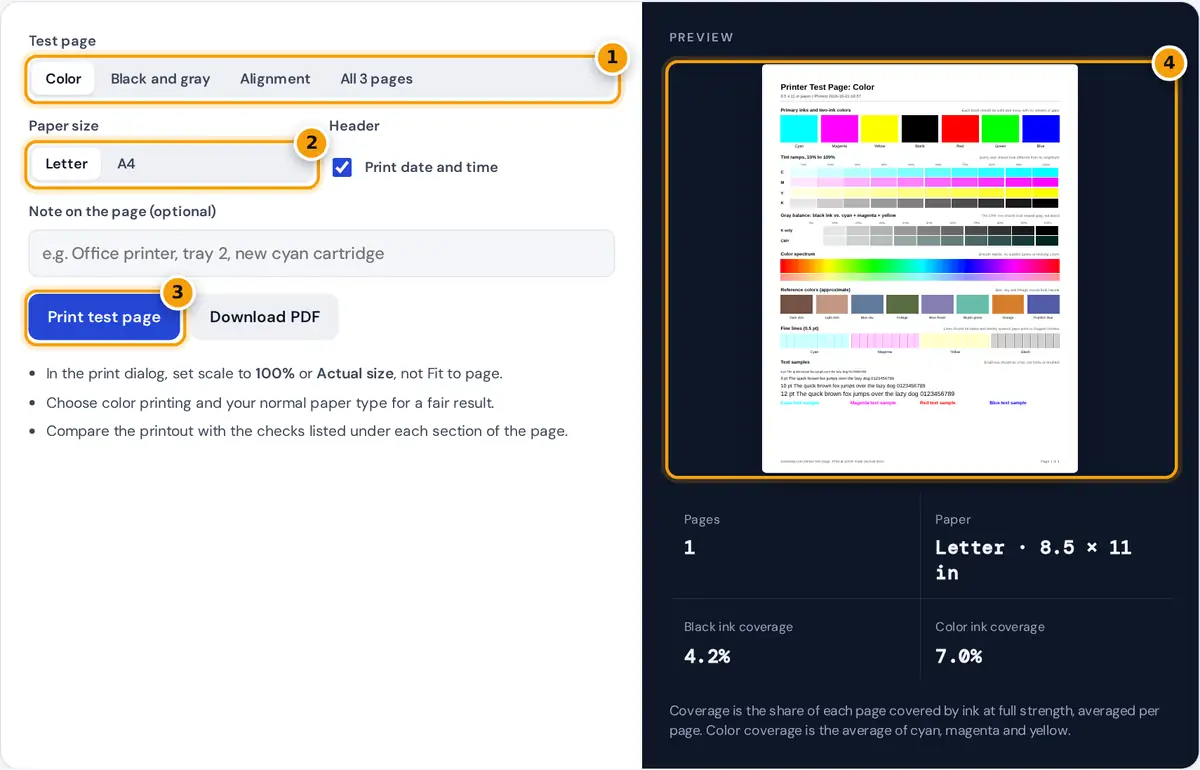
- Choose a test page: color, black and gray, alignment, or all 3 pages.
- Pick Letter or A4 to match the paper in your printer.
- Press Print test page and set scale to 100% (Actual size) in the print dialog.
- Check the preview, then compare your printout with the checks listed under each section.
Choose Color, Black and gray, Alignment or All 3 pages, then pick Letter or A4 paper. Then add a short note, such as the printer name or tray, and keep the date and time header.
Press Print test page to open the print dialog. Set scale to 100% or Actual size, switch off Fit to page, choose color printing and select your usual paper type and quality before you print.
Prefer a file? Download PDF saves a printer test page PDF you can print from a phone, a tablet or another computer. Everything is built in your browser, so nothing is uploaded to a server.
What Each Test Page Contains
The color printer test page shows solid cyan, magenta, yellow and black blocks, then red, green and blue two-ink mixes. Tint ramps run from 10% to 100%, so every ink is checked at many strengths.
It also includes a gray balance row, a hue spectrum, reference skin, sky and foliage colors, fine lines in each ink and text samples. Readers searching for a colour printer test page get identical patterns.
The black and gray page holds a 21-step gray ramp, a smooth gradient, a solid black block and line widths from 0.25 pt to 4 pt. The alignment page adds rulers, circles and calibration bars.
How to Read Your Printout
| What you see | Likely cause | What to try |
|---|---|---|
| Missing or faint color block, gaps in fine lines | Clogged print head nozzles or an empty cartridge | Run head cleaning, then print again |
| Horizontal white lines in the solid black block | Banding from clogged nozzles or a misaligned head | Clean, then run print head alignment |
| Gray balance row looks green, pink or blue | One color ink is low or clogged | Check ink levels and that color's tint ramp |
| Circles print as ovals, bars not 100 mm or 4 in | Scaling or Fit to page is on | Set scale to 100% and print again |
| Text looks doubled or blurry | Head alignment off, or wrong paper type | Run alignment and pick the right paper type |
Start with the solid blocks. Missing, faded or patchy color usually means clogged nozzles or an empty cartridge, while thin white streaks across the black block are banding caused by a partly blocked print head.
Next, check the gray balance row. If the CMY row looks green, pink or blue instead of neutral gray, one ink is low or blocked, and that color cast will show up in photos too.
Most inkjet problems clear after one or two head cleaning cycles followed by a head alignment. Run both from your printer software, print the test page again and compare the two sheets side by side.
When to Print a Test Page
Print a test page after installing a new cartridge or toner, so you know the fresh supply works before real jobs. It also confirms the printer recognized the cartridge and the protective tape was removed.
Inkjets that sit idle for a couple of weeks often develop dried ink in the nozzles. A quick color sheet shows whether a cleaning cycle is needed, saving a ruined photo or a wasted document.
Test after moving the printer, after a paper jam and before important print runs such as reports, letters or labels. Keeping one dated printout gives you a baseline to compare against when quality later drops.
How Ink Coverage Is Estimated
color coverage = Σ(shape area × (cyan % + magenta % + yellow %) ÷ 3) ÷ page area
The panel estimates ink coverage, the share of the page covered by ink at full strength. Each shape is measured in points of 1/72 inch and multiplied by how much of each ink it uses.
Example: the solid black block on a Letter page is 540 by 90 points, or 48,600 square points. The page is 612 by 792 points, or 484,704, so that block alone covers 10.0% in black.
Cartridge page yield is measured differently. Standards such as ISO/IEC 19752 use a test document with roughly 5% coverage, so one full set of these pages uses about as much toner as several ordinary pages.
Built-In Test Pages on Windows and Mac
Your computer can also print the printer driver's own page. In Windows, open Settings, then Printers and scanners, choose the printer, open printer properties and select Print Test Page, which lists the driver and port.
On macOS, open System Settings, then Printers and Scanners, select your printer and then use the options or utility panel. Many printers also print a status or nozzle check page directly from the control panel.
Those built-in pages confirm the connection but test little else. This page adds real color, gray and scaling checks. For a downloaded PDF, Ctrl+P on Windows or Cmd+P on a Mac opens the print dialog.
Inkjet and Laser Printer Differences
An inkjet printer sprays droplets through tiny nozzles, so gaps, banding and missing colors usually trace back to the print head. Cleaning cycles, fresh cartridges and regular printing are the usual fixes for inkjet trouble.
A laser printer has no nozzles whatsoever. Repeating marks, smudges or faded stripes usually point to the drum, the fuser or low toner, and shaking or replacing the toner cartridge is often the first fix.
For fair results on either kind, use plain 80gsm office paper and set the correct paper type. Glossy or photo settings on plain paper can cause smearing that looks like a fault but is not.
Limits of a Browser Test Page
Screens and printers reproduce color differently, so the printout will not match the preview exactly. The reference colors are approximations, not a calibrated color chart, so use them to spot casts rather than to profile.
Printing from a browser sends RGB colors that your printer driver converts to CMYK. The page requests exact color through the W3C color adjust specification, while the PDF defines its ink patches in CMYK directly.
If problems remain after cleaning and alignment, check your printer manual or contact the manufacturer. A test page diagnoses symptoms but cannot repair worn print heads, damaged drums or a failing fuser on its own.
Frequently asked questions
How do I print a printer test page?
Choose a test page and paper size, press Print test page, set the scale to 100% or Actual size in the print dialog, then print. You can also download the PDF and print it from any device.
How do I print a color test page?
Select Color and press Print test page. The sheet shows each ink on its own, the main ink mixes, tint ramps and a full spectrum, so missing or faded colors are easy to spot.
Why are there lines on my test print?
White lines across solid areas usually mean clogged print head nozzles or a misaligned head. Run head cleaning and alignment from your printer software, then print the test page again to compare.
Does a printer test page use a lot of ink?
Not much. A full color sheet uses about as much ink as a few ordinary pages, and the panel shows the estimated black and color coverage for the page you selected before printing.
Is there a printer test page PDF?
Yes. Press Download PDF to save the selected page or the full set of three pages as a PDF in Letter or A4 size, then print it from any computer, tablet or phone.
Why is my test page printing blank?
A blank page usually means an empty cartridge, protective tape left on a new cartridge or badly clogged nozzles. Check ink or toner levels, reseat the cartridge and run a cleaning cycle.