How to Use the Controller Stick Drift Test
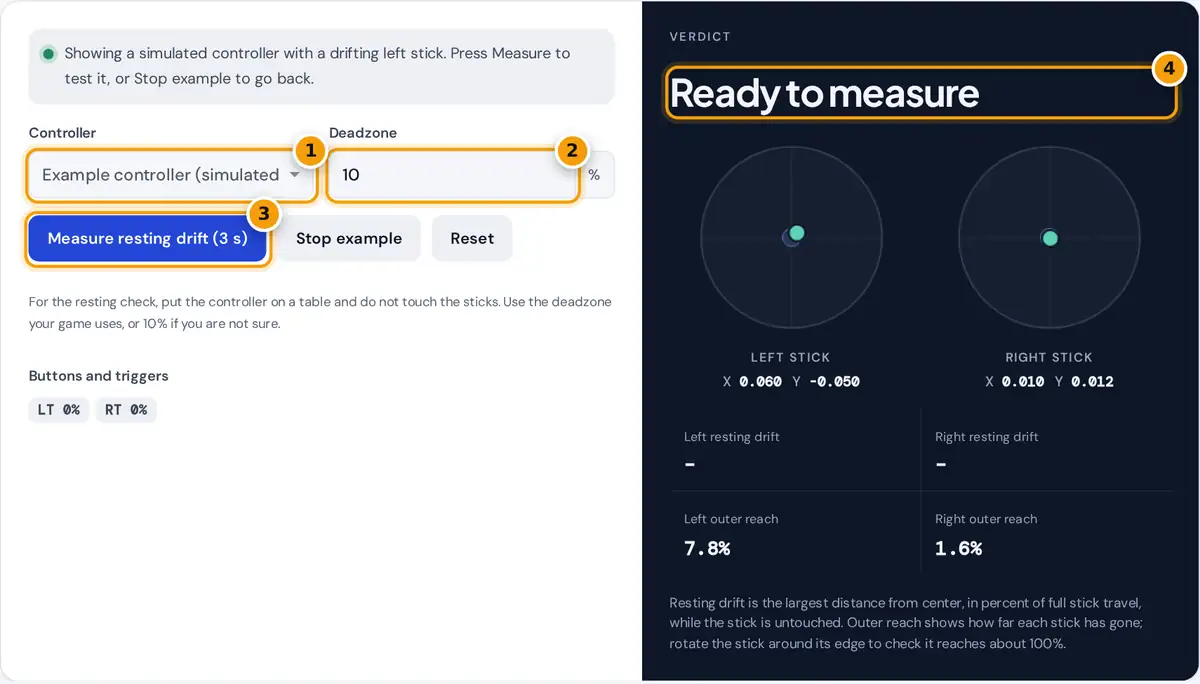
- Connect your controller by USB or Bluetooth, press any button, then pick it here.
- Enter the deadzone your game uses, or leave it at 10%.
- Put the controller down, hands off the sticks, and press Measure for a 3 second resting test.
- Read the verdict and each stick's resting drift compared with your deadzone.
Connect your controller with a USB cable or pair it over Bluetooth, then press any button on it. Browsers hide gamepads from web pages until that first press, so the stick drift test needs it.
Move both sticks and watch the dots follow them live, with the X and Y values updating every frame. Then put the controller flat on a table, let go completely and press Measure resting drift.
For three seconds the tool records where each stick rests and compares the result with your deadzone. No controller close by? Press Show an example to see a simulated controller whose left stick drifts slightly.
What Stick Drift Is
Stick drift happens when an analog stick reports movement while nobody touches it. In a typical game, the camera turns slowly, the character moves on its own or a menu cursor creeps in one direction.
Every joystick reports a small offset from its exact center position, even when new. That is normal and harmless. Drift becomes a problem only when the resting offset grows large enough for games to notice.
It appears gradually. A stick may return to center when you first pick up the controller, then rest slightly off center after you push it hard to an edge, which is why repeat tests help.
Common Causes of Stick Drift
Most analog sticks measure position with a potentiometer, a sensor with a wiper that slides across a resistive track. Use causes wear on that track, so the reading at rest slowly shifts away from zero.
Dust and debris that work their way under the stick cap can also disturb the sensor. A worn spring or loose stick module may also stop the stick from springing back to the true center.
Drops, heat, spilled drinks and moisture all speed up the damage. Wireless interference rarely causes real drift, but a weak Bluetooth connection can make readings jump, so test with a cable if the dot jitters.
How Drift Is Measured
The W3C Gamepad API reports each analog stick as two numbers from −1 to 1. The X axis runs from left to right, the Y axis from up to down, and 0 means perfectly centered.
resting drift = largest distance recorded during the 3 second check
drift if resting drift ≥ deadzone; borderline if it is at least 75% of the deadzone
The tool combines both axes into a single distance from center, then shows it as a percentage of full travel. A value of 1.0 means the stick reads as if pushed fully to the edge.
During the three-second check it keeps the largest distance it sees, not the average, because a brief twitch is enough to move a game character. Where the two differ, it shows the average as well.
Worked Example: A Drifting Left Stick
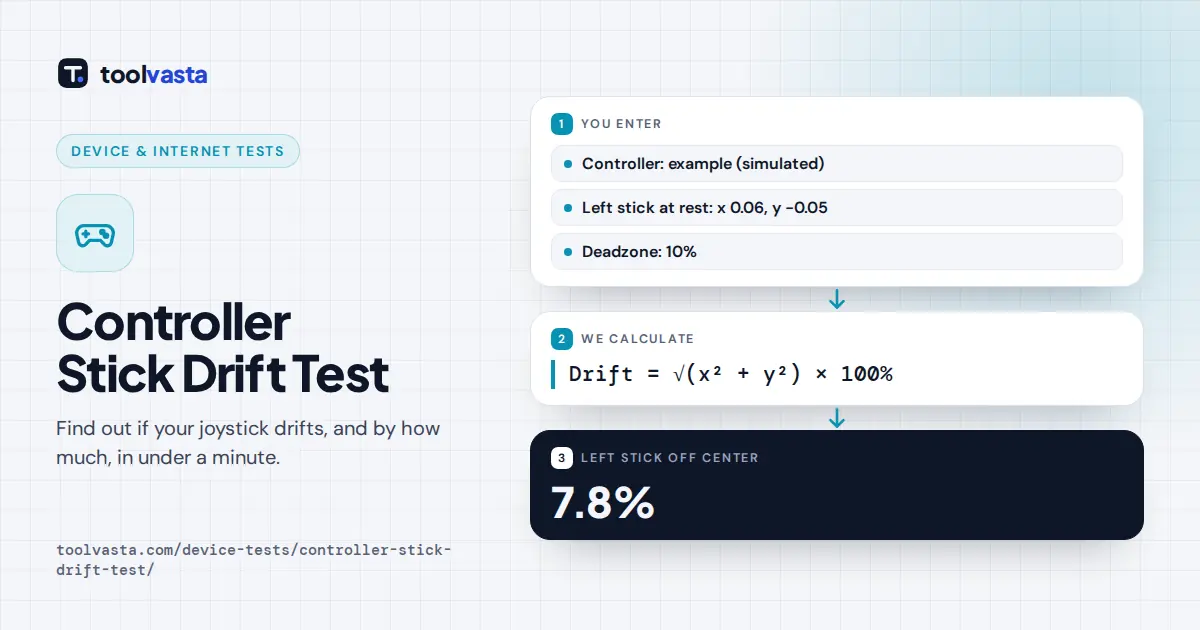
The built-in example rests the left stick at X = 0.060 and Y = −0.050. Its distance from the center is √(0.0036 + 0.0025), which is √0.0061, or 0.078. That works out to 7.8% of full stick travel.
With a 10% deadzone the stick sits inside, but 7.8% is more than 75% of 10%, so the verdict is borderline. With a 5% deadzone, the game receives constant input and the tool reports drift.
The right stick in the same example rests at only 1.6%, well inside any common setting. With a 20% deadzone the tool reports no drift at all, because both sticks stay inside that wider zone.
Deadzones and What the Results Mean
A deadzone is the area around center that a game ignores. Many games use an inner deadzone around 5% to 15%, which is why small offsets on a healthy controller never show up in play.
| Resting drift | What it usually means |
|---|---|
| Under about 3% | Normal offset. Any analog stick has a little. |
| Below your deadzone | Games ignore it, so you will not notice it. |
| At least 75% of your deadzone | Borderline. Retest after pushing the stick to its edges. |
| At or above your deadzone | Stick drift. Input reaches the game on its own. |
Enter the deadzone your game uses in its controller settings, or 10% if you are unsure. A stick that rests outside the deadzone will move your camera or your character without any input from you.
Outer reach shows how far each stick traveled. Roll each stick slowly around its rim: values near 100% are healthy, while a stick stuck below about 90% may struggle to reach full sprint in games.
How to Fix Stick Drift
Start with a controller firmware update and recalibrate the controller using the console settings or the maker's app. Then raise the in-game deadzone just above your measured resting drift, which hides minor drift almost immediately.
- Clean around the stick base with compressed air while rotating the stick fully.
- A little isopropyl alcohol on a swab can loosen grime, with the controller switched off.
- Retest after each step to see whether the resting drift drops.
If drift keeps growing after cleaning and calibration, the stick module itself is probably worn. Check the warranty before opening the controller, since repairs can void it. The FTC guide to warranties explains typical coverage.
A replacement stick module or a new controller is the lasting fix. Sticks that use Hall effect sensors measure position with magnets instead of a sliding contact, so they avoid the usual wear behind drift.
Supported Controllers and Limits
Xbox controllers, the PlayStation DualSense and DualShock 4, the Switch Pro Controller and most PC gamepad models work in current versions of Chrome, Edge and Firefox on desktop computers and on many phones and tablets.
The browser sees the raw values the controller sends, before any deadzone that a console or game applies. That means drift can show here even when a game hides it completely during your normal play.
Older third-party controllers and some adapters may report a different button layout or fewer axes. For privacy, everything runs in your browser, and nothing about your controller is recorded, uploaded or stored on any server.
Frequently asked questions
How do I know if my controller has stick drift?
Let go of both sticks and run the three-second resting check. If a stick rests farther from center than your game's deadzone, or the dot moves on its own, that stick is drifting.
Why does the test say no controller detected?
Browsers only expose a controller after you press a button on it. Connect it by cable or Bluetooth, press any button, and make sure the page is open in a current browser.
Which controllers work with this stick drift test?
Xbox, PlayStation DualSense and DualShock 4, Switch Pro and most USB or Bluetooth gamepads work in current Chrome, Edge and Firefox. Some older third-party controllers report fewer axes or a different layout.
What deadzone should I use?
Use the value your game uses. If you are not sure, 10% is a reasonable starting point. To hide minor drift, set the in-game deadzone just above your measured resting drift.
Can stick drift be fixed?
Cleaning, recalibrating or a larger deadzone often help with mild drift. Drift caused by a worn potentiometer or stick module needs a repair, a replacement module or a new controller.
What is a normal amount of stick drift?
A resting offset under about 3% is normal for an analog stick. It only becomes a problem when it reaches your game's deadzone, because then the game treats it as real input.