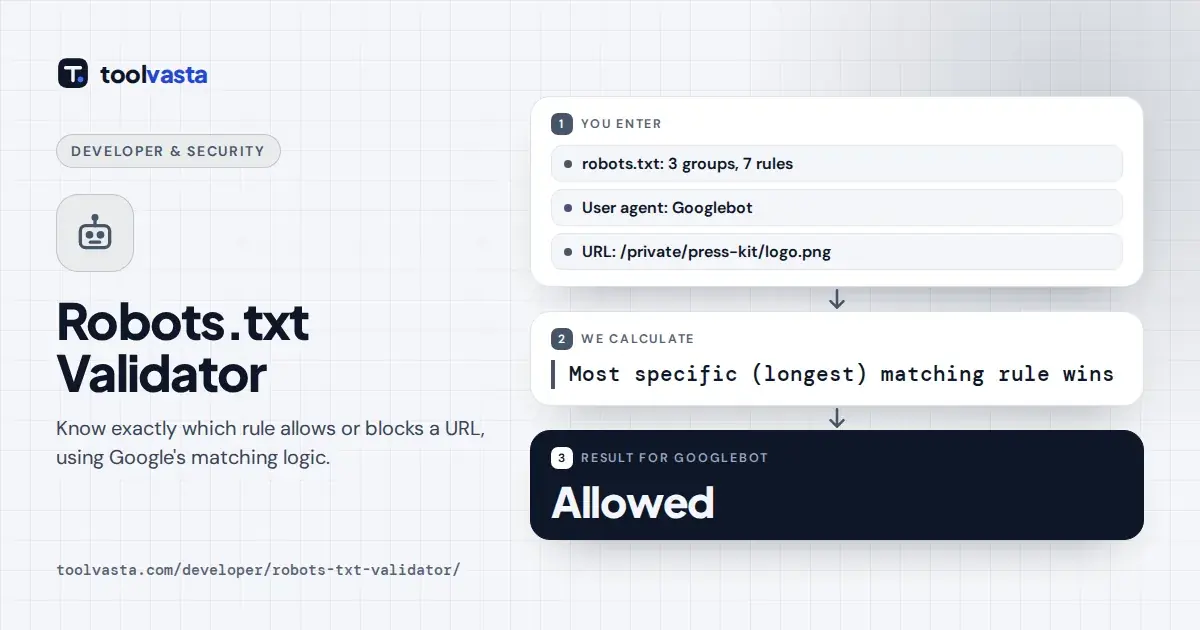
How to Test Your Robots.txt
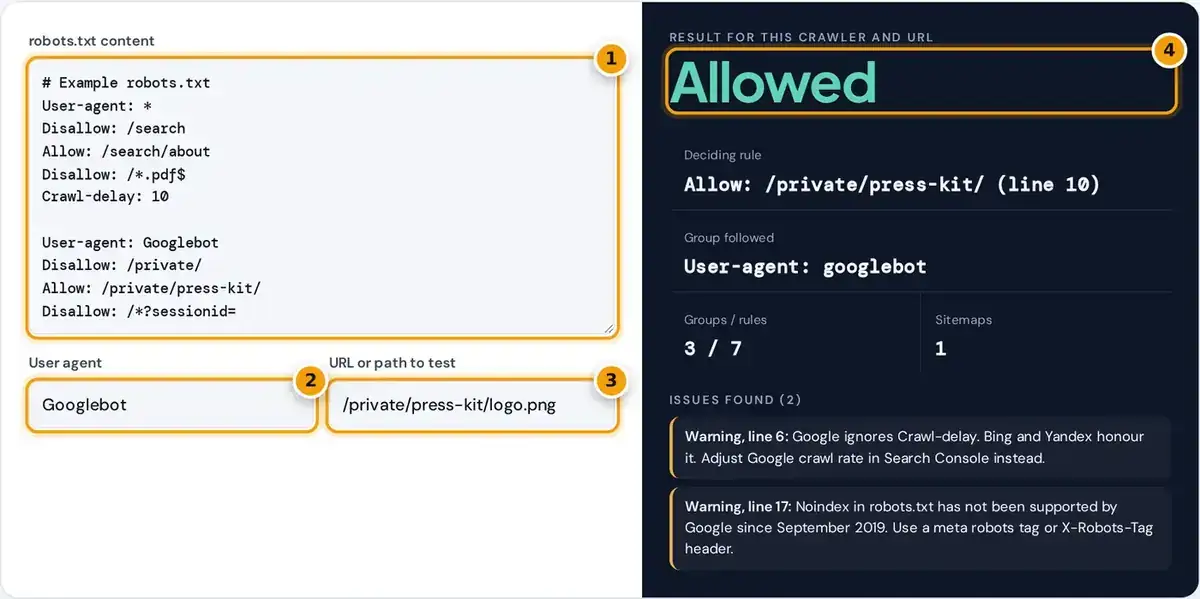
- Paste the full contents of your robots.txt file.
- Enter the crawler to test, such as Googlebot, Bingbot or GPTBot.
- Enter the URL or path you want to check.
- Read Allowed or Blocked, then the deciding rule, its line and any issues found.
Paste the contents of your robots.txt file into the box, or open yoursite.com/robots.txt in a tab and copy it. The validator checks the syntax as you type and lists errors and warnings with line numbers.
Then enter a user agent, such as Googlebot or GPTBot, and a URL or path to test. You can paste a full address; the tool strips the domain before matching the path against the rules.
The result shows Allowed or Blocked, the exact rule that decided it, the group followed and a count of groups, rules and sitemaps. Everything runs in your browser, and nothing is fetched from your site.
What a Robots.txt File Does
A robots.txt file is a plain text file in the root directory of a host, for example at example.com/robots.txt. It tells search engine crawlers which URL paths they may request, following the Robots Exclusion Protocol.
The protocol was standardized as RFC 9309 in 2022. It controls crawling only, not indexing, and each subdomain needs its own file, because crawlers only ever read the file at the root of each host.
It is not a security tool. Well-behaved bots follow it voluntarily, while bad scrapers can simply ignore it. Use it to manage crawl budget and server load, and protect private content with passwords or authentication.
How Crawlers Choose a Group
A robots.txt file is made of groups. Each group starts with one or more User-agent lines, followed by Allow and Disallow rules. A crawler obeys exactly one group, chosen by the four steps listed below.
- The group whose user agent matches the crawler's name, compared case-insensitive.
- If several groups name the same crawler, their rules are merged.
- Specialized crawlers such as Googlebot-Image use the Googlebot group as a fallback.
- If nothing matches, the crawler follows the User-agent: * group.
This is why a named Googlebot group completely replaces the * group for Google's main crawler. In the sample file, Googlebot may crawl /search, because its own group has no rule blocking that path at all.
Bingbot has no named group in the sample, so it follows User-agent: * and is blocked from /search. The Group followed line in the results always tells you exactly which group applied to your current test.
Longest Match Wins
Within the chosen group, every rule whose path matches the start of the URL is a candidate. The most specific rule, meaning the one with the longest path, wins. In a tie, Allow beats Disallow.
$ at the end means the URL must end there
winner = matching rule with the longest path
tie: Allow beats Disallow
Here is a worked example: test Googlebot on /private/press-kit/logo.png. Both Disallow: /private/ and Allow: /private/press-kit/ match, but the Allow rule has the longer path, so the image file is allowed, exactly as the tool reports.
Now test Bingbot on /docs/guide.pdf. The wildcard rule Disallow: /*.pdf$ matches, and the dollar sign anchors it to the end of the URL, so it is blocked. Add ?v=2 and the URL becomes allowed again.
Supported and Ignored Directives
Google supports only four fields in the file. The validator flags everything else with a warning or error, so you know which lines crawlers will silently skip and which ones need fixing before you deploy.
| Directive | Notes | |
|---|---|---|
| User-agent | Supported | Starts a group |
| Disallow | Supported | Empty value means allow all |
| Allow | Supported | Overrides a shorter Disallow |
| Sitemap | Supported | Must be a full URL, applies to all crawlers |
| Crawl-delay | Ignored | Honored by Bing and Yandex |
| Noindex | Ignored since 2019 | Use a meta robots tag instead |
| Host, Clean-param | Ignored | Yandex only |
An empty Disallow line allows everything for that group. A Sitemap line must hold a full URL and applies to every crawler, wherever it appears. Google also ignores any content beyond the first 500 KiB.
The tool follows Google's robots.txt specification, including its fallback rules, but it does not decode percent-encoded characters or follow redirects. After deploying a change, confirm the file with the robots.txt report in Google Search Console.
Blocking AI Crawlers
Many sites now add separate groups for AI crawlers that gather training data. The sample file blocks GPTBot from the whole site with Disallow: /, while leaving normal search engine crawling completely untouched for everyone else.
Common AI user agents include GPTBot, ClaudeBot and Google-Extended. Pick GPTBot or ClaudeBot from the user agent list, or type another name, test a few paths, and confirm the verdict is Blocked before you publish.
Blocking an AI crawler does not affect regular search results from Googlebot or Bingbot, because each group applies only to the crawlers it names. Keep each AI group separate so that the intent stays clear.
Common Robots.txt Mistakes
Most robots.txt problems come from a handful of repeated errors. Test every change in this validator before it goes live, because a single wrong line can stop crawlers from reaching important pages across the site.
- Blocking pages you want removed: Disallow stops crawling, not indexing. Use a noindex meta tag or X-Robots-Tag on a crawlable page.
- Blocking CSS and JavaScript, which Google needs to render pages.
- Typos such as Dissallow, which strict parsers ignore.
- Leaving Disallow: / from a staging site, which blocks everything.
A missing or extra trailing slash also matters a lot. Disallow: /blog blocks /blog, /blog/ and /blog-news, while Disallow: /blog/ blocks only the folder and its contents, so choose the version that matches your intent.
Paths are case sensitive, so Disallow: /Private/ does not block /private/. Rules placed before the first User-agent line are ignored by crawlers too, and the validator reports them as errors with the matching line number.
Frequently asked questions
Does Disallow in robots.txt remove a page from Google?
No. Disallow only stops crawling, and a blocked page can still be indexed from links on other sites. To remove a page, allow crawling and add a noindex meta tag or an X-Robots-Tag header.
Which rule wins when Allow and Disallow both match?
Google follows the most specific rule, which is the matching rule with the longest path. If an Allow and a Disallow rule have the same length, Allow wins and the URL can be crawled.
Does Google support Crawl-delay?
No. Googlebot ignores Crawl-delay, although Bing and Yandex honor it. To slow Google's crawling, reduce server errors or follow Google's guidance in Search Console instead of adding a delay line.
What does the $ sign mean in robots.txt?
It anchors the pattern to the end of the URL. Disallow: /*.pdf$ blocks URLs ending in .pdf, but not /file.pdf?download=1, because that URL continues after the extension.
Is robots.txt case sensitive?
Directive names such as Disallow are not case sensitive, but paths are. Disallow: /Private/ does not block /private/, so match the exact capitalization your URLs use on the live site.
Where should the robots.txt file be placed?
Place it at the root of each host, such as https://www.example.com/robots.txt. A file in a subfolder is ignored, and every subdomain needs its own robots.txt file to control its crawling.