How to Use the Word Cloud Generator
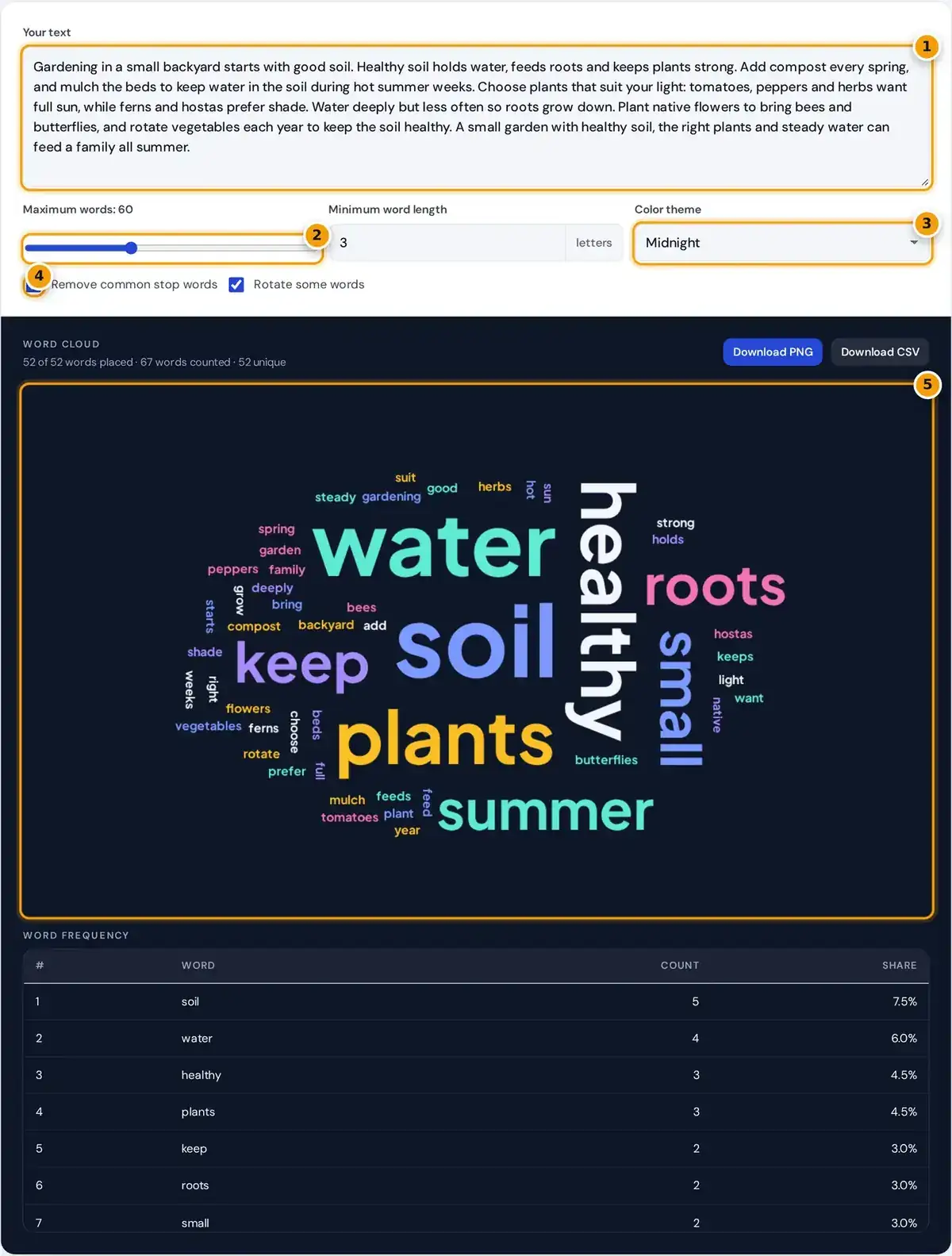
- Paste or type your text, such as survey answers or an essay.
- Set the maximum number of words in the cloud.
- Pick a color theme: Midnight, Paper, Sunset, Forest or Monochrome.
- Remove common stop words and choose whether to rotate some words.
- Check the cloud, then download it as PNG or the frequency table as CSV.
Paste your text into the box, or type it in directly. The word cloud generator counts every word, removes common filler words, and draws the most frequent words in the biggest type at the center.
Use the maximum words slider to show between 10 and 150 words, and set a minimum word length to hide short words. Pick a color theme, and choose whether to rotate some words for variety.
Press Download PNG to save the image for a slide or document, or Download CSV to open the word counts in a spreadsheet. The frequency table under the cloud lists every word with its share.
How the Word Cloud Is Calculated
The text is converted to lowercase and split into words. Apostrophes and hyphens inside words are kept, so contractions and hyphenated compounds count as one word each. Numbers and very short words are then dropped.
Stop words like the, and, of and is are removed if the option is on. The Stanford introduction to information retrieval explains why such common words add little when finding what a text really covers.
Each remaining word is counted and sorted by word frequency. Font size grows with the square root of the count, and words are placed along a spiral from the center until they no longer overlap.
- Convert the text to lowercase and split it into words.
- Remove numbers, short words and, if selected, stop words.
- Count each word and sort by frequency.
- Scale font size with the square root of the count.
- Place words along a spiral from the center without overlap.
font size = min + (max − min) × √((count − lowest) ÷ (highest − lowest))
Worked Example With a Short Text
In this worked example, the input text is apple apple apple banana banana cherry, followed by the four times. Stop word removal drops every the, so six counted words remain for the cloud to draw.
Apple appears 3 times, a share of 50.0%. Banana appears 2 times, or 33.3%, and cherry just once, or 16.7%. The share is each word count divided by all counted words, then multiplied by 100.
Apple gets the largest font and cherry the smallest. The same numbers appear in the frequency table and in the CSV download, so you can check the cloud against exact counts rather than by eye.
Ideas for Using Word Clouds
Word clouds are a quick way to explore survey and feedback results. Paste open-ended answers from a form, and the themes people mention most will stand out before you read every single response in detail.
In the classroom, a word cloud can summarize a chapter, a speech or a vocabulary list. Students can compare clouds from two texts, or two characters, to discuss differences in focus, tone and word choice.
Writers can paste drafts to find overused words, since repeated favorites jump out at once. For a presentation, a cloud makes a simple visual summary on a slide, especially with the Paper theme on white.
- Survey and feedback analysis
- Classroom summaries and vocabulary lists
- Finding overused words in your writing
- Quick visual summaries for slides
Limits of Word Clouds
A word cloud shows frequency, not meaning. The two-word phrase not good is counted as good, because each word is counted entirely alone, without the context around it that changes how a reader understands it.
Plural forms such as plant and plants are counted separately, splitting their weight. Very long words also take up more space at the same frequency, which can make them look more important than they are.
For analysis that matters, read the frequency table rather than judging by size alone. The stop word list covers common English words only, so text in other languages keeps all its words in the cloud.
Tips for a Better Word Cloud
Clean the text first. Remove headers, signatures and repeated boilerplate that would otherwise dominate the counts, and edit words that appear in two forms so both use the same form before you generate the cloud.
Raise the minimum word length to 4 or 5 to hide short words missing from the stop list. Show 30 to 60 words for a readable image, as large clouds shrink small words too much.
Pick the Paper or Forest theme for printing, and Midnight or Sunset for screens and slides with dark backgrounds. Good contrast keeps small words readable, as the W3C contrast guidance explains for text on screens.
- Remove headers, signatures and boilerplate.
- Raise the minimum word length to 4 or 5.
- Show 30 to 60 words for a readable image.
- Use Paper or Forest for print, Midnight or Sunset for dark slides.
Privacy and Free Use
Your text never leaves your own device. Counting, layout and the PNG export all run in your browser, so you can safely paste private survey results, student work, unpublished drafts or confidential notes from meetings.
There is no sign-up, no account and no watermark on the image. You can make as many clouds as you like, adjust settings freely, and download each version as a PNG or a CSV file.
Some people call the result a tag cloud, a word collage or a wordle. Whatever the name, this tool builds it from word frequency alone, with every count visible in the table under the image.
Frequently asked questions
How do I make a word cloud for free?
Paste your text into the box above. The word cloud is drawn instantly, and you can download it as a PNG or the counts as a CSV file without signing up or creating an account.
What are stop words?
Stop words are very common words such as the, and, of and is. They appear in almost every text, so they are removed by default to reveal the more meaningful words in your writing.
How is word size decided?
Size depends on how often a word appears. The generator scales font size by the square root of the frequency, which keeps one very common word from crowding out the rest of the cloud.
Can I get the word counts?
Yes. The frequency table under the cloud lists every word with its count and share, and the Download CSV button saves the full list for use in a spreadsheet.
Is my text uploaded anywhere?
No. All processing happens in your browser and nothing is sent to a server, so you can safely use private survey answers, student essays or unpublished drafts.
How many words should a word cloud show?
Between 30 and 60 words usually gives a readable image. The slider goes from 10 to 150, but very large clouds shrink the smaller words until they become hard to read.