How to Make Curved Text
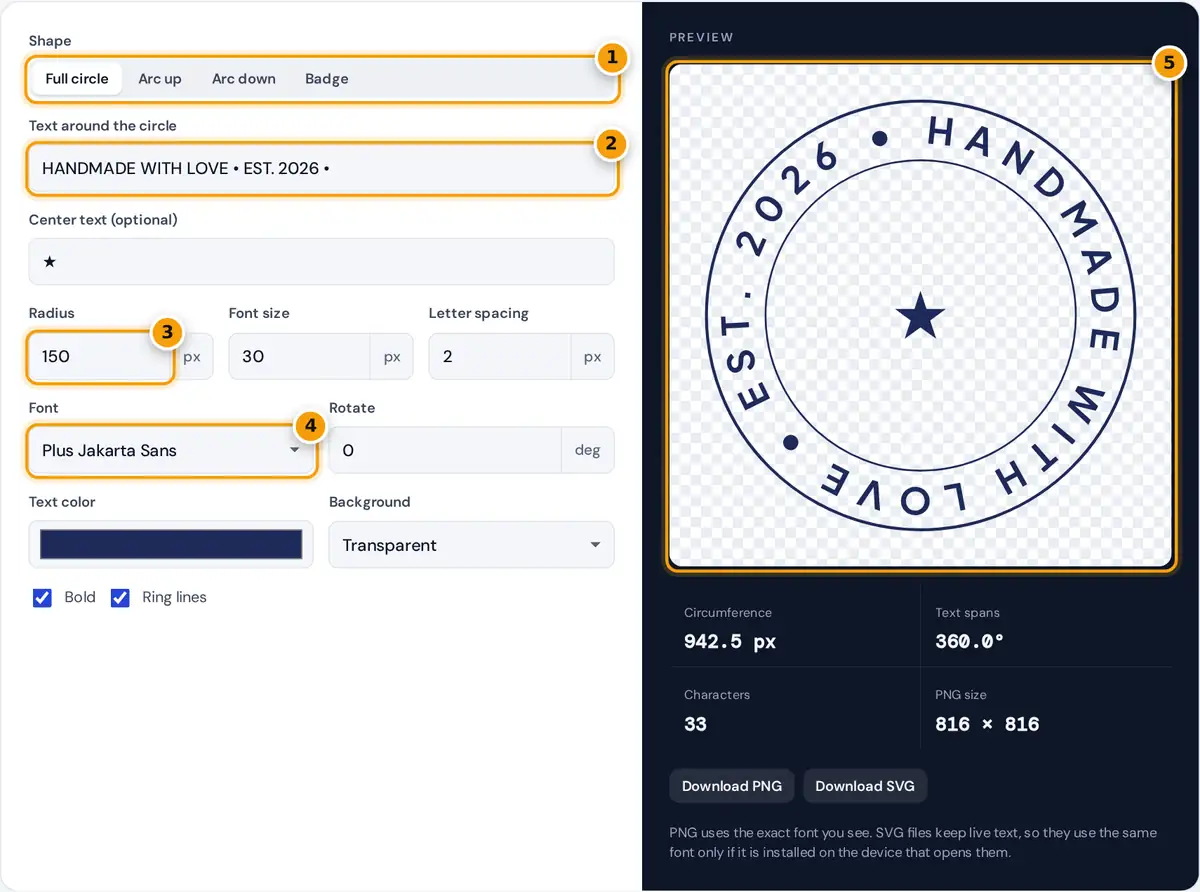
- Choose a shape: full circle, arc up, arc down or a two-line badge.
- Type the text to run around the circle, and optional center text below.
- Set the radius, font size and letter spacing to fit your design.
- Pick a font, then set rotation, text colour and background.
- Check the live preview, then download a transparent PNG or an SVG file.
Pick a shape, type your text and add an optional center symbol or word. The preview updates instantly, so this curved text generator shows exactly how the finished design will look before you download anything.
- Choose Full circle, Arc up, Arc down or Badge.
- Set the radius, font size and letter spacing.
- Choose a font, text color and background, then download a PNG or SVG.
Use Rotate to turn the whole design to any angle. Bold text and decorative ring lines are both optional, and the panel under the preview reports circumference, text span, character count and the PNG size.
Transparent backgrounds suit logos placed on photos, shirts or products. Choose white or a custom color instead when the design will sit on its own, such as a profile picture or a printed sticker sheet.
Full Circle, Arc and Badge Shapes
Full circle spreads the text evenly around the whole ring, which makes it the classic circle text generator layout for seals and emblems. The spacing adjusts automatically so the last letter neatly meets the first.
Arc up bends text over the top like a rainbow, while Arc down curves it along the bottom like a smile. Both keep letters upright and readable, which suits headings on posters, labels and cards.
Badge combines top and bottom text in one design. The top text reads clockwise over the top and the bottom text reads left to right underneath, so neither line ever appears upside down to readers.
How Text Is Placed on a Circle
Every character is first measured in the chosen font. Its distance along the text, divided by the radius, gives its angle in radians, and the character is rotated so its baseline neatly follows the curve.
angle of a character (radians) = distance along the text ÷ radius
arc span (degrees) = text length ÷ radius × 180 ÷ π
full circle: extra gap per character = (circumference − text length) ÷ number of characters
With the default radius of 150 px, the circumference is 2 × 3.14159 × 150 = 942.5 px. Text measuring 700 px spans 700 ÷ 150 = 4.67 radians, or 267.4 degrees. That is roughly three quarters of the ring.
In full circle mode with 33 characters, each gets an extra 7.3 px so the text closes the loop neatly. Double the radius to 300 px and the text's arc span drops to 133.7 degrees.
Making Text Fit the Circle
If the tool says your text does not fit, the text is longer than the circumference. Increase the radius, reduce the font size or letter spacing, or shorten the wording until it closes the ring.
| Radius | Circumference | Fits about (30 px bold capitals) |
|---|---|---|
| 100 px | 628.3 px | 25 characters |
| 150 px | 942.5 px | 38 characters |
| 200 px | 1,256.6 px | 50 characters |
| 300 px | 1,885.0 px | 75 characters |
The table assumes an average width of about 25 px per character, including spacing, for 30 px bold capitals. Your own count will differ, sometimes a lot, with font choice, weight and letter spacing settings.
Narrow letters such as I fit more per ring, while wide letters such as W fit fewer. That is why the tool measures each character in the real font instead of guessing an average width.
Design Tips for Circle Logos and Stamps
End full circle text with a separator such as • or ★ and a space, so the start and end do not run together. This is the small detail that makes a round logo look properly finished.
- Capital letters with a little extra letter spacing look most balanced on a curve.
- Keep the font size below about a quarter of the radius for a clean ring.
- Turn on ring lines and add initials as center text for a classic stamp.
Larger letters spread apart at their tops on small circles, so step the radius up rather than cramming big text into a tight ring. Short words usually read better on a curve than long sentences.
For a business badge, put the company name on top and a year, city or slogan along the bottom. Matching font sizes on both lines keeps the round design feeling balanced and easy to read.
PNG or SVG?
The PNG is drawn with the exact font you see, at twice the on-screen preview size, and stays transparent unless you pick a background. The W3C PNG specification defines how its alpha channel transparency works.
The SVG keeps each character as live text positioned on the curve, so you can edit it in Inkscape, Illustrator or Figma. SVG text on curves is described in the W3C SVG 2 text chapter.
If the font is not installed on the computer that opens the SVG, a similar font is substituted. For logos, convert the text to outlines in your vector editor so the letter shapes never change.
Curved Text in Canva, Word and Other Apps
Canva, Word and Photoshop each have their own curve effects. This tool helps when you want precise radius and spacing control, a badge with top and bottom text, or a clean SVG file to edit.
To use the result in Word or Google Docs, download the transparent PNG and insert it as a normal image. It keeps the curve exactly, unlike text effects that can shift when documents open elsewhere.
The output also works as a curved font generator for t-shirt prints, stickers and labels. Upload the PNG or SVG file to your chosen print service, checking that the resolution suits the final printed size.
Frequently asked questions
How do I curve text in a circle?
Choose Full circle, type your text and adjust the radius until the text closes the loop. The generator spaces the characters evenly around the circle and shows the circumference and text span below the preview.
Why does it say my text does not fit?
The text is longer than the circle's circumference. Increase the radius, reduce the font size or letter spacing, or shorten the text until it fits within one full turn of the ring.
Can I download curved text with a transparent background?
Yes. Keep the background set to Transparent and press Download PNG. The image is rendered at twice the preview size, so it stays sharp on most screens and in documents.
Can I make curved text in Canva or Word instead?
Canva and Word have their own curve effects. This tool is useful when you want precise radius and spacing control, a badge with top and bottom text, or an editable SVG file.
How do I make a round logo or stamp?
Use Badge mode, add top and bottom text, turn on ring lines, put a symbol or initials in the center and download the PNG or SVG. Capital letters with extra spacing look best.
Should I download PNG or SVG?
Choose PNG for a ready image that looks exactly like the preview. Choose SVG when you need a scalable vector to edit in Inkscape, Illustrator or Figma, and convert text to outlines for logos.