How to Use the Twitch Emote Maker
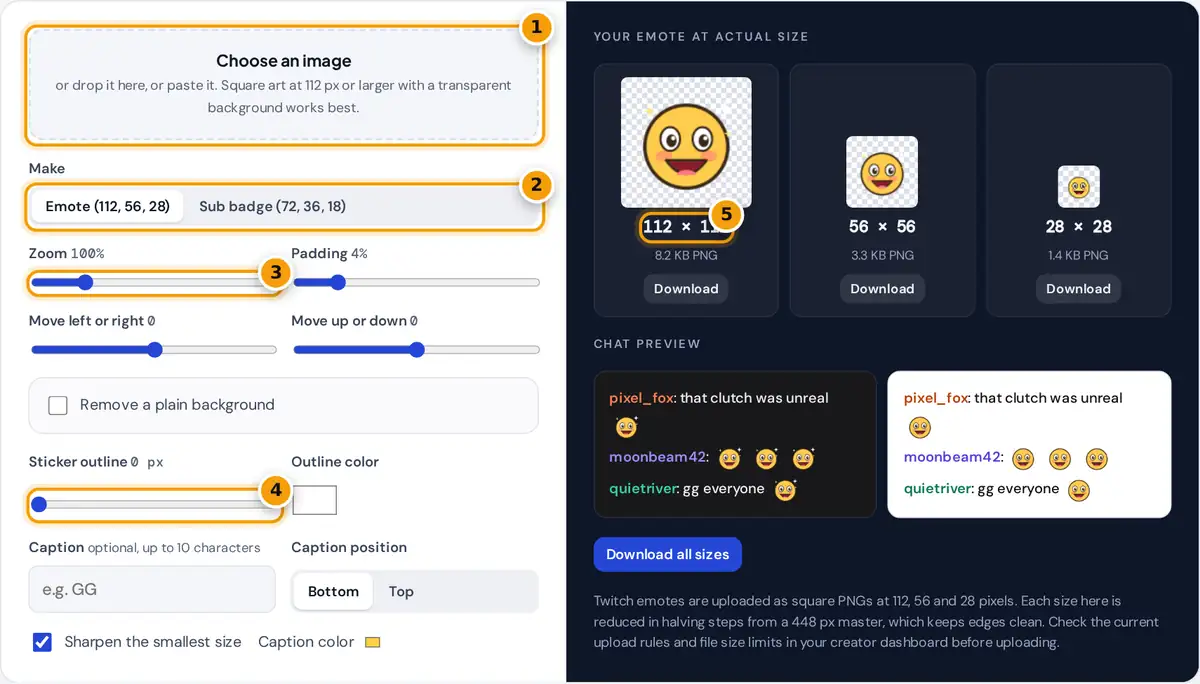
- Choose, drop or paste your emote artwork.
- Pick emote sizes or subscriber badge sizes.
- Frame the art with zoom, padding and the move sliders.
- Add a sticker outline so it reads on dark and light chat.
- Check each size and the chat preview, then download the PNGs.
- Choose, drop or paste your artwork. A sample emote is loaded so you can see the result right away.
- Pick Emote for 112, 56 and 28 pixel files, or Sub badge for 72, 36 and 18 pixel files.
- Use Zoom, Padding and the two move sliders to frame the artwork. Emotes read best when the face or symbol fills most of the square.
- If your picture has a plain background, turn on Remove a plain background and raise the tolerance until it disappears.
- Add a sticker outline so the emote stands out on both dark and light chat themes, and an optional short caption such as GG or HYPE.
- Check the actual-size previews and the chat preview, then download each size or all three.
Twitch Emote and Badge Sizes
| Asset | Sizes (pixels) | Shown in chat at |
|---|---|---|
| Emote | 112 × 112, 56 × 56, 28 × 28 | 28 px on standard screens, 56 or 112 px on high-density screens |
| Subscriber badge | 72 × 72, 36 × 36, 18 × 18 | 18 px next to the username |
All files are square, transparent PNGs. Twitch also offers a single-image upload that resizes automatically, but its downscaling can blur fine lines. Making each size yourself, and checking the 28 pixel version, gives you control over the result. Platform rules change, so confirm the current sizes and file size limits in your creator dashboard.
How the Resizing Works
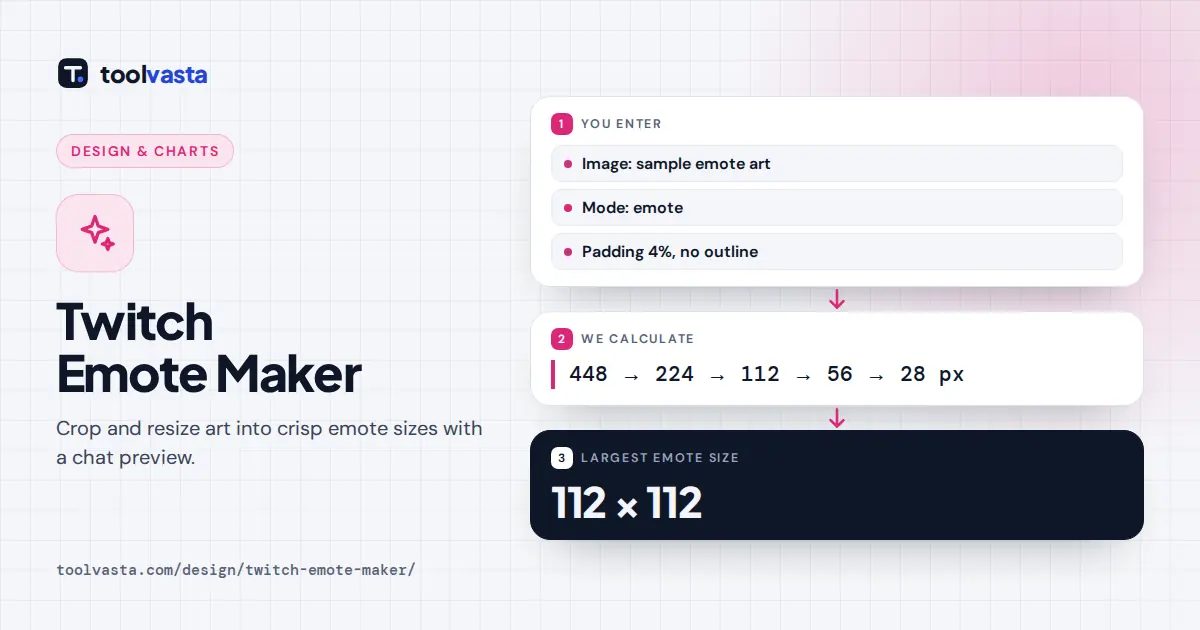
The tool builds a master image four times the largest size, 448 × 448 pixels for emotes or 288 × 288 for badges, and then halves it step by step with high-quality smoothing:
badge: 288 → 144 → 72 → 36 → 18
Halving averages exactly four pixels into one at every step, which avoids the jagged edges and lost detail that come from shrinking a large image in one jump. The smallest size then gets a gentle sharpening pass on its opaque pixels to recover edge contrast. Worked example: a 1024 × 1024 drawing with 4% padding is fitted into 448 × (1 − 2 × 0.04) = 412 pixels of the master, so at 28 × 28 the artwork spans about 412 ÷ 16 = 25.8 pixels, leaving roughly one pixel of breathing room on each side.
Why a Sticker Outline Helps
Chat can use a dark or light theme. A dark character disappears on a dark background and a white one on a light background. A white or colored outline around the artwork, the "sticker" look, keeps the emote readable on both. The outline is drawn on the large master, so a 4 pixel setting becomes 16 pixels at 448 px and shrinks back to a clean 4 pixel border at 112 px and about 1 pixel at 28 px.
Tips for Emotes That Read at 28 Pixels
- Exaggerate. Big eyes, big mouths and strong expressions survive shrinking; small details do not.
- Use thick outlines in your artwork and avoid thin text. If you add a caption, keep it to two to four characters.
- Crop tight. Empty space wastes pixels. Keep padding low unless the outline needs room.
- Check both chat themes in the preview before you upload.
- Use your own art or art you have permission to use. Emotes are reviewed, and copyrighted characters can be rejected.
Before uploading, look at the 28 pixel preview in both chat themes at normal viewing distance. If you cannot tell what the emote shows, simplify the art. Everything runs in your browser and your image is never uploaded. Twitch is a trademark of Twitch Interactive, Inc. This tool is independent and not affiliated with it.
Frequently asked questions
What size are Twitch emotes?
Twitch emotes use three square PNG files: 112 by 112, 56 by 56 and 28 by 28 pixels. Chat shows the 28 pixel version on standard screens and the larger files on high-density displays.
What size are Twitch sub badges?
Subscriber badges use 72 by 72, 36 by 36 and 18 by 18 pixel PNG files. Switch the maker to Sub badge to export those three sizes.
How do I make an emote background transparent?
Start from a PNG that already has transparency, or turn on Remove a plain background and raise the tolerance until the backdrop disappears. Every download is a transparent PNG.
Why does my emote look blurry at 28 pixels?
Fine lines and small details cannot survive at 28 pixels. Crop tighter, use thicker outlines and bolder shapes, and keep Sharpen the smallest size switched on.
Do I need to upload all three sizes?
Uploading all three gives the most control over how each size looks. Twitch can also generate the sizes from one large image, but separate files avoid unexpected blur.
Can I use these emotes on Discord or other platforms?
Yes. The PNGs are standard transparent images. Discord emoji are usually uploaded at 128 pixels, so the 112 pixel file works, though a 128 pixel source gives the sharpest result there.