How to Use the Paint by Number Generator
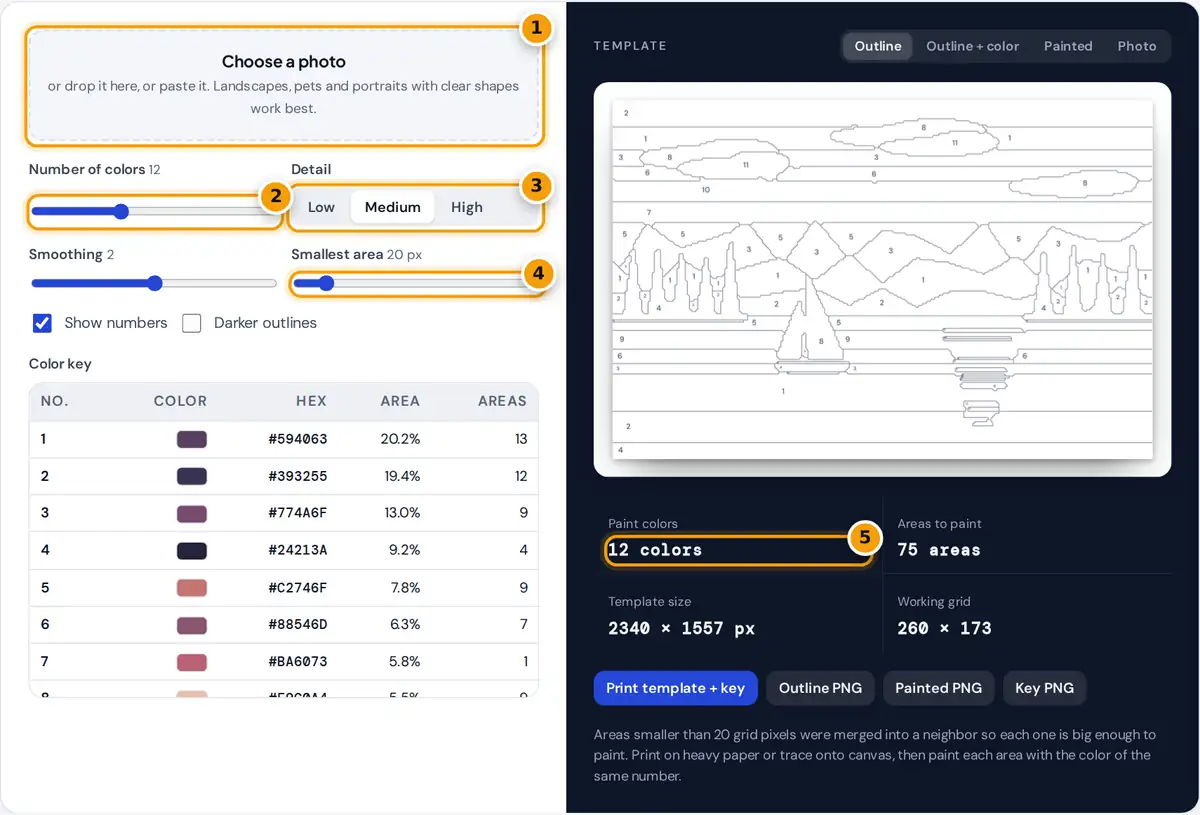
- Choose or drop the photo you want to paint.
- Set how many paint colors the template should use.
- Pick low, medium or high detail.
- Raise the smallest area to remove regions too tiny to paint.
- Check the colors and areas, then print the template and key.
- Choose, drop or paste a photo. A sunset lake scene is loaded as an example.
- Set the number of colors. Six to ten colors suit beginners and children, twelve to twenty give a realistic painting, and up to thirty work for detailed portraits.
- Pick the detail level. Low makes fewer, larger areas; High keeps more of the photo but adds many small areas.
- Adjust smoothing to round off jagged edges and smallest area to remove areas too tiny to paint.
- Switch between Outline, Outline + color, Painted and Photo to check the result.
- Press Print template + key, or download the outline, the painted preview and the color key as PNG files.
The color key lists each paint number with its hex code, its share of the picture and how many separate areas use it, so you know how much of each paint to mix.
How the Generator Turns a Photo into Numbered Areas
The generator works in five steps, all in your browser:
- Resize the photo to a working grid, for example 260 pixels on the longest side at Medium detail.
- Find the paint colors with k-means clustering in the CIELAB color space, where distances match how different colors look to people. Starting centers are chosen with the k-means++ method and refined over 14 rounds.
- Smooth the result with a majority filter: each pixel takes the most common color among itself and its eight neighbors.
- Merge small areas: every connected area smaller than the smallest area setting joins the neighboring color it shares the longest border with.
- Outline and number: borders are drawn where neighboring colors differ, and each number is placed at the point farthest from the area's edges, found with a distance transform.
k-means: repeat { assign each pixel to the nearest color; move each color to the mean of its pixels }
Worked Example
The sample photo is 900 × 600 pixels. At Medium detail the working grid is 260 × 173 pixels (600 × 260 ÷ 900 = 173.3, rounded down). The outline is drawn on a grid three times finer, 780 × 519, and saved at three times that size again, so the template is 2340 × 1557 pixels. Printed landscape on Letter paper with 0.4 in margins, it is 10.2 in wide, about 230 pixels per inch, sharp enough for thin outlines and small numbers. With the default smallest area of 20 grid pixels, no area is smaller than about 20 ÷ 260 of the picture width in its narrowest direction, which keeps areas paintable with a fine brush.
Choosing Settings for Your Photo
| Goal | Colors | Detail | Smallest area |
|---|---|---|---|
| Kids or first painting | 6 to 8 | Low | 60 to 150 |
| Relaxing weekend project | 10 to 15 | Medium | 20 to 40 |
| Realistic portrait or pet | 18 to 30 | High | 10 to 20 |
Photos with strong light, clear subjects and simple backgrounds give the cleanest templates. Busy scenes like crowds or leafy trees create hundreds of tiny areas; raise the smallest area and smoothing for those.
Mixing and Painting Tips
- Use the hex codes as a target and mix acrylics until they look close. Screens and paints never match exactly, so trust your eye.
- The Area column tells you which colors need the most paint. Mix those in larger batches.
- Paint dark colors first and light colors last, or the other way round, but finish one number before moving on.
- Print with Darker outlines off if you plan to paint over the lines with light colors, so the lines do not show through.
- To transfer the template to canvas, print it at the canvas size and trace it with carbon or graphite transfer paper.
Frequently asked questions
How do I turn a photo into a paint by number?
Upload the photo, choose how many paint colors you want, pick a detail level and adjust smoothing and the smallest area. Then print the numbered outline and the color key, or download them as PNG files.
How many colors should a paint by number have?
Beginners and children do well with 6 to 8 colors. Most adult kits use roughly 12 to 24. More colors look more realistic but mean more mixing and many more small areas.
How does the generator choose the paint colors?
It groups the photo's pixels with k-means clustering in the CIELAB color space, which measures color differences the way people see them. Each group's average color becomes one paint.
Why are some small details missing?
Areas smaller than the smallest area setting are merged into a neighbor so every area can be painted. Lower the setting or choose High detail to keep more detail, at the cost of more tiny areas.
Can I print the template on canvas?
Yes, if your printer accepts canvas sheets. Otherwise print it on paper at the canvas size and trace it onto the canvas with transfer paper, then paint using the color key.
Is my photo uploaded to a server?
No. The colors, outlines and numbers are calculated in your browser on your own device, and the files you download are created there too, so the photo never leaves it.