How to Use the Robots.txt Generator
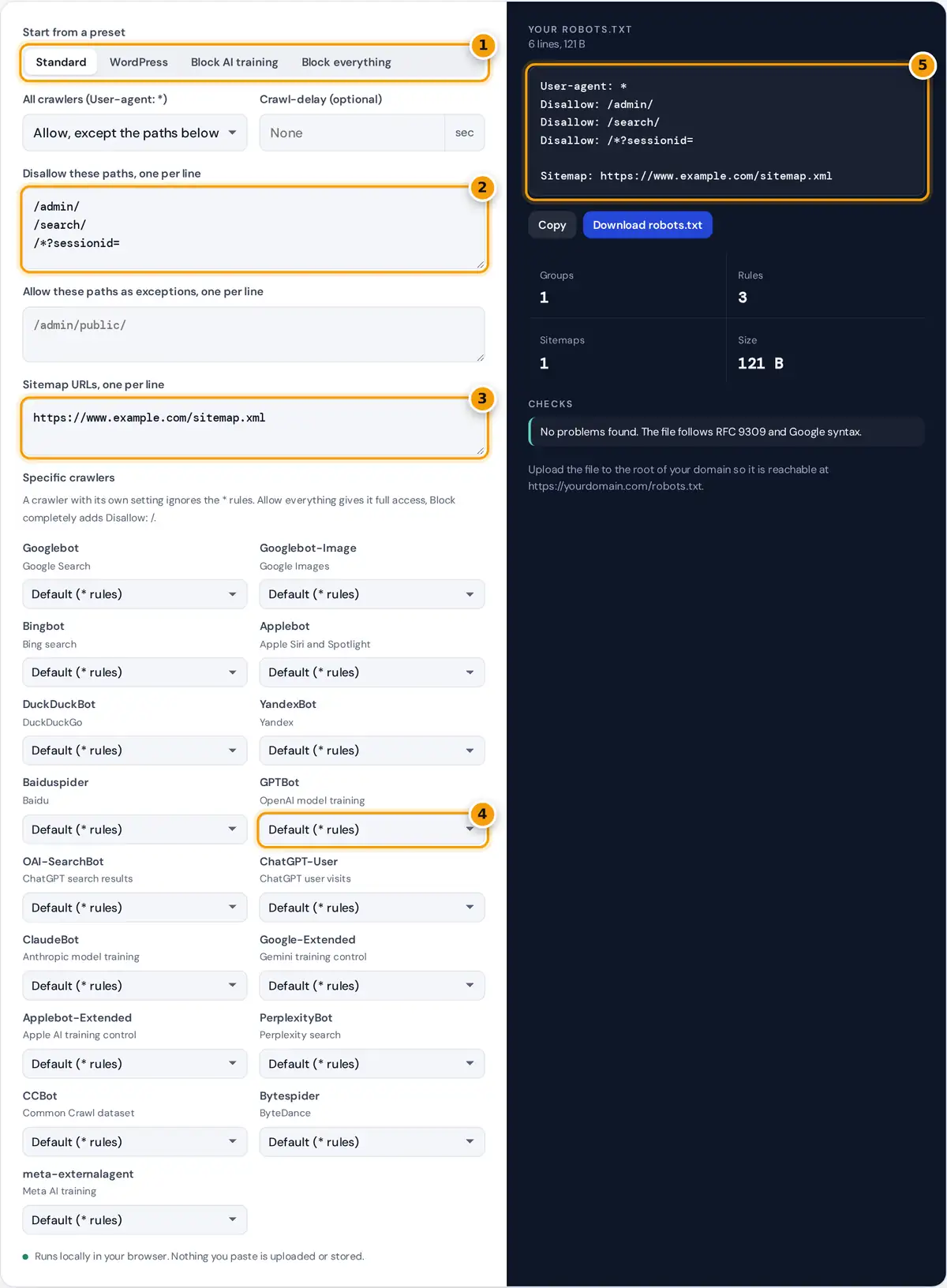
- Start from a preset: standard, WordPress, block AI training or block everything.
- List the paths crawlers should skip, one per line.
- Add the full URL of your XML sitemap.
- Allow or block specific crawlers such as GPTBot.
- Check the generated file, then copy it or download robots.txt.
Pick a preset to start. Standard suits most sites, WordPress keeps crawlers out of the admin area while allowing the AJAX endpoint many themes need, Block AI training adds rules for crawlers that collect content for AI models, and Block everything is for staging and development copies. Then adjust the fields: one path per line in the Disallow and Allow boxes, and your full sitemap URL.
Under Specific crawlers, give any bot its own rule. The file updates as you type, the checks panel flags mistakes, and you can copy the text or download a ready-made robots.txt. The generator runs locally in your browser and never fetches or stores your site.
How a Robots.txt File Is Structured
Robots.txt is a plain text file at the root of a host, defined by the Robots Exclusion Protocol, published as RFC 9309 in 2022. It is made of groups. Each group starts with one or more User-agent lines naming crawlers, followed by Allow and Disallow rules. Sitemap lines stand on their own and apply to every crawler.
Disallow: /admin/
Disallow: /search/
Disallow: /*?sessionid=
Sitemap: https://www.example.com/sitemap.xml
A crawler follows only the most specific group that names it. That is why a crawler you set to Allow everything ignores the Disallow paths in the * group: it has its own group that allows all paths.
Worked Example
An online store wants search engines to skip the cart, checkout and internal search results, and does not want its product descriptions used to train AI models. Choose Block AI training, replace the Disallow box with /cart/, /checkout/ and /search/, and enter the store’s sitemap URL. The generator produces a * group with three Disallow lines, a second group listing GPTBot, ClaudeBot, Google-Extended, Applebot-Extended, CCBot, Bytespider and meta-externalagent with Disallow: /, and the sitemap line. Googlebot and Bingbot still crawl every product page.
Path Patterns
| Rule | Blocks | Does not block |
|---|---|---|
| Disallow: /admin/ | /admin/, /admin/users | /admin, /administrator |
| Disallow: /admin | /admin, /admin/, /administrator | /Admin (paths are case sensitive) |
| Disallow: /*.pdf$ | /files/report.pdf | /report.pdf?download=1 |
| Disallow: /*?sessionid= | /shop?sessionid=42 | /shop?page=2 |
| Disallow: / | The whole site | Nothing (robots.txt itself stays readable) |
An asterisk matches any run of characters and a dollar sign anchors the end of the URL. When an Allow and a Disallow rule both match, Google follows the longer, more specific rule.
Search Crawlers and AI Crawlers
Several AI companies publish separate user agents for training and for search, so you can choose. GPTBot collects training data for OpenAI, while OAI-SearchBot fetches pages for ChatGPT search results. Google-Extended and Applebot-Extended are control tokens: blocking them limits use of your content for Gemini and Apple AI training without affecting Google Search or Siri results. The Block AI training preset blocks the training crawlers and leaves search crawlers alone. Crawler names change, so check each company’s documentation before relying on a rule.
Important Limits
- Robots.txt is not security. It is a public request that well-behaved crawlers follow. Protect private areas with authentication.
- Disallow does not remove pages from Google. A blocked URL can still be indexed from links. Use a noindex meta tag on a crawlable page instead, as explained in Google’s robots.txt introduction.
- Google ignores Crawl-delay. Bing and Yandex honor it.
- Each subdomain needs its own file, and Google reads only the first 500 KiB.
After uploading, test individual URLs with our Robots.txt Validator.
Testing and Updating Your File
After uploading, open your robots.txt in a browser to confirm it loads as plain text and returns a 200 status. Google caches the file for up to about a day, so changes are not instant. Keep the file short and readable, comment unusual rules with a line starting with #, and review it whenever you redesign the site or move sections, because an old Disallow line can quietly block a new folder.
Frequently asked questions
Where do I put my robots.txt file?
Upload it to the root folder of your website so it loads at https://yourdomain.com/robots.txt. Crawlers only look there. Each subdomain, such as shop.yourdomain.com, needs its own robots.txt file.
How do I block AI crawlers with robots.txt?
Add a group naming each AI crawler, such as GPTBot, ClaudeBot, CCBot and Google-Extended, followed by Disallow: /. The Block AI training preset does this for you while keeping Googlebot and Bingbot allowed.
Does robots.txt stop a page from appearing in Google?
No. Disallow only stops crawling. Google can still index a blocked URL if other pages link to it. To keep a page out of results, allow crawling and add a noindex meta tag or header.
Should I add my sitemap to robots.txt?
Yes. A Sitemap line with the full URL of your XML sitemap helps every crawler find your pages, including search engines where you have not submitted it. You can list several sitemap lines.
What does Disallow with nothing after it mean?
An empty Disallow line means nothing is blocked, so the crawler may fetch every page. This generator writes Allow: / instead when no paths are blocked, which has the same meaning and is easier to read.
Is this generator safe for my site?
It only builds text in your browser and never connects to your site. Review the output, especially Block everything and Disallow: / lines, before uploading, because a wrong rule can stop search engines from crawling your pages.