How to Use the JSON Formatter
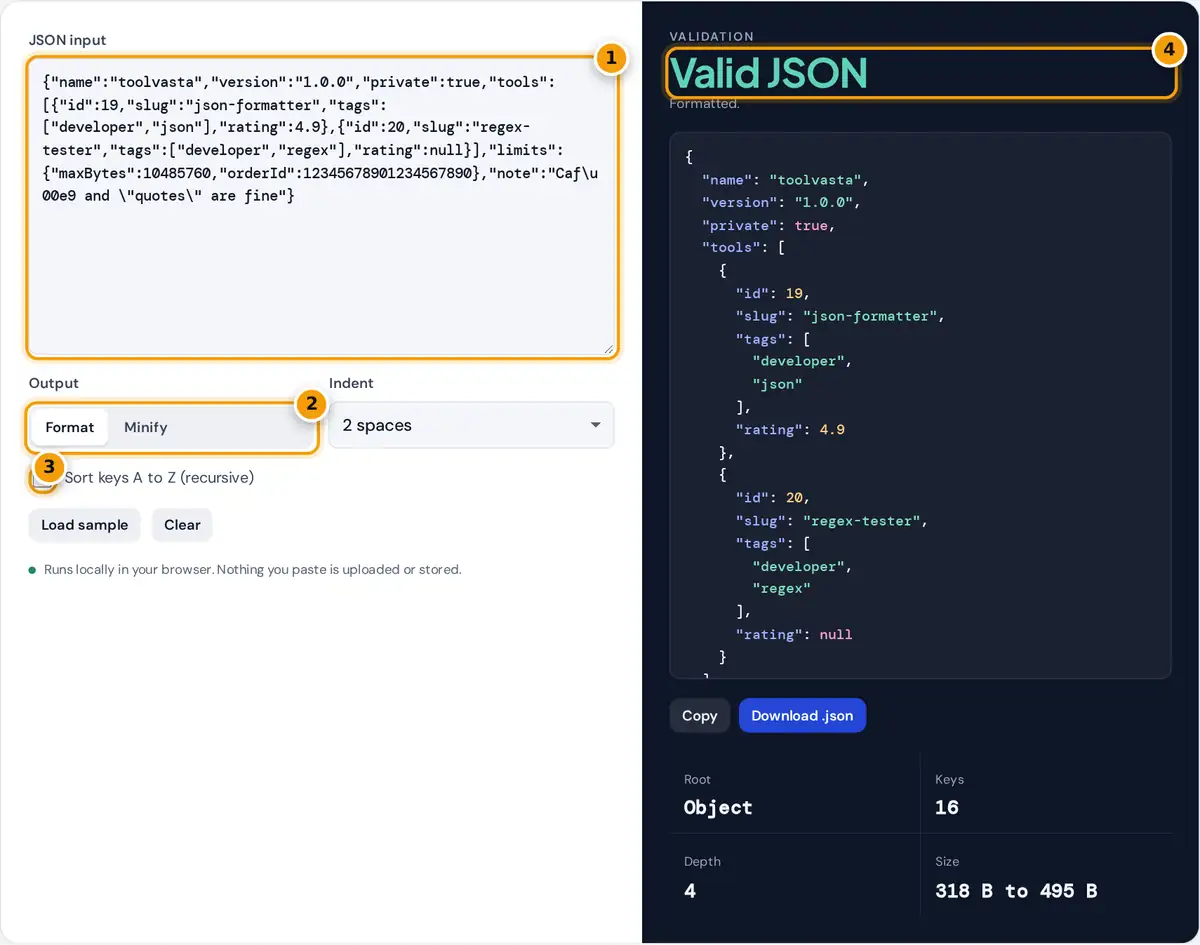
- Paste your JSON.
- Choose Format for readable output or Minify for compact output.
- Tick to sort every object's keys A to Z.
- Check the status, then copy or download the formatted JSON.
Paste JSON into the input box. The tool validates it as you type. Valid JSON is pretty-printed with color highlighting, using 2 spaces, 4 spaces or tabs. Switch the output to Minify to remove all whitespace for production or for sending in an API request, and tick Sort keys A to Z to order every object’s keys, which makes two JSON files much easier to compare. Copy the result or download it as a .json file.
If the JSON is invalid, the panel turns red and names the exact line and column with a plain-English reason, then shows the line with a caret under the problem. Everything runs locally in your browser, so API responses and configuration files are never uploaded.
JSON Syntax Rules
JSON is defined by RFC 8259. Its grammar is small and strict, which is why a single stray comma breaks a whole file.
object = { "key": value, ... } keys must be double-quoted strings
array = [ value, ... ] no trailing comma
number = -? digits (. digits)? (e ±digits)? no leading zeros, no NaN
Worked Example
Take the input {"a": 1,}. The parser reads the object, the key, the colon and the value 1, then the comma, and expects another key. Instead it finds } at character 9, so the formatter reports Line 1, column 9: Trailing comma: remove the comma before “}”. Remove the comma and the result is valid. Minified, {"b":1,"a":{"d":2,"c":3}} with sorted keys becomes {"a":{"c":3,"d":2},"b":1}.
Common JSON Errors
| Mistake | Invalid | Valid |
|---|---|---|
| Trailing comma | [1, 2, 3,] | [1, 2, 3] |
| Single quotes | {'name': 'Ann'} | {"name": "Ann"} |
| Unquoted key | {name: "Ann"} | {"name": "Ann"} |
| Python literals | {"ok": True, "v": None} | {"ok": true, "v": null} |
| Leading zero | {"zip": 01234} | {"zip": "01234"} |
| Comments | {"a": 1 // note} | {"a": 1} |
| Missing comma | {"a": 1 "b": 2} | {"a": 1, "b": 2} |
Big Numbers Stay Exact
Many online formatters run your text through JSON.parse and print it again. JavaScript numbers are 64-bit floating point, so integers above 9,007,199,254,740,991 lose digits: an order ID of 12345678901234567890 comes back as 12345678901234567000. This formatter uses its own parser that keeps every number exactly as written, along with the original string escapes, so formatting never changes your data. It also warns about duplicate keys, which most parsers silently resolve by keeping the last value.
Tips
- JSON has no comments. If you need them, use JSONC or YAML in your tooling and strip comments before sending.
- Sorting keys does not change meaning, because JSON objects are unordered, but arrays keep their order.
- Minified JSON saves bandwidth; gzip compression on the server saves much more.
- For tokens that contain JSON, our JWT Decoder extracts and formats the payload directly.
Working With Large Files
The formatter handles files of several megabytes. Syntax colors are switched off for very large output so the page stays responsive, and the download button saves the result without copying it to the clipboard. For multi-gigabyte data, a command line tool such as jq is a better fit.
JSON and JavaScript Objects
JSON looks like JavaScript, but it is stricter. JavaScript object literals allow unquoted keys, single quotes, trailing commas, comments, functions and the value undefined. None of these are valid JSON. When you copy an object from source code or a browser console, run it through the validator first, and fix the reported lines one by one until the status turns green.
A frequent case is JSON copied from a log line where quotes were escaped, such as {"id": 1}. Remove the extra backslashes, or decode the surrounding string first, and the validator will accept it.
Sorting keys before saving configuration files to version control also keeps diffs small, because unrelated reordering no longer shows up as changes.
Frequently asked questions
How do I format JSON?
Paste the JSON into the input box and choose Format. The tool validates it and prints it with your chosen indent of 2 spaces, 4 spaces or a tab, with color highlighting. Copy the result or download it as a file.
How do I find the error in my JSON?
When JSON is invalid, the formatter shows the exact line and column, explains the problem in plain words, and marks the spot with a caret. Trailing commas, single quotes and missing commas are the most common causes.
Are trailing commas allowed in JSON?
No. JSON does not allow a comma after the last item in an object or array, even though JavaScript does. Remove the final comma, so [1, 2, 3,] becomes [1, 2, 3].
Does formatting change my numbers?
Not here. This formatter keeps every number exactly as written, so very large integers such as 64-bit IDs keep all their digits. Tools that use JSON.parse can round integers larger than 9,007,199,254,740,991.
Can JSON have comments?
No. The JSON standard has no comment syntax, so // and /* */ cause errors. Some tools accept JSON with comments, often called JSONC, but you must remove the comments before using strict JSON parsers.
Is my JSON uploaded anywhere?
No. Parsing, formatting and validation run entirely in your browser with JavaScript. Nothing you paste is sent to a server or stored, which makes the tool safe for API responses and configuration files.