How to Use the Quiz Maker
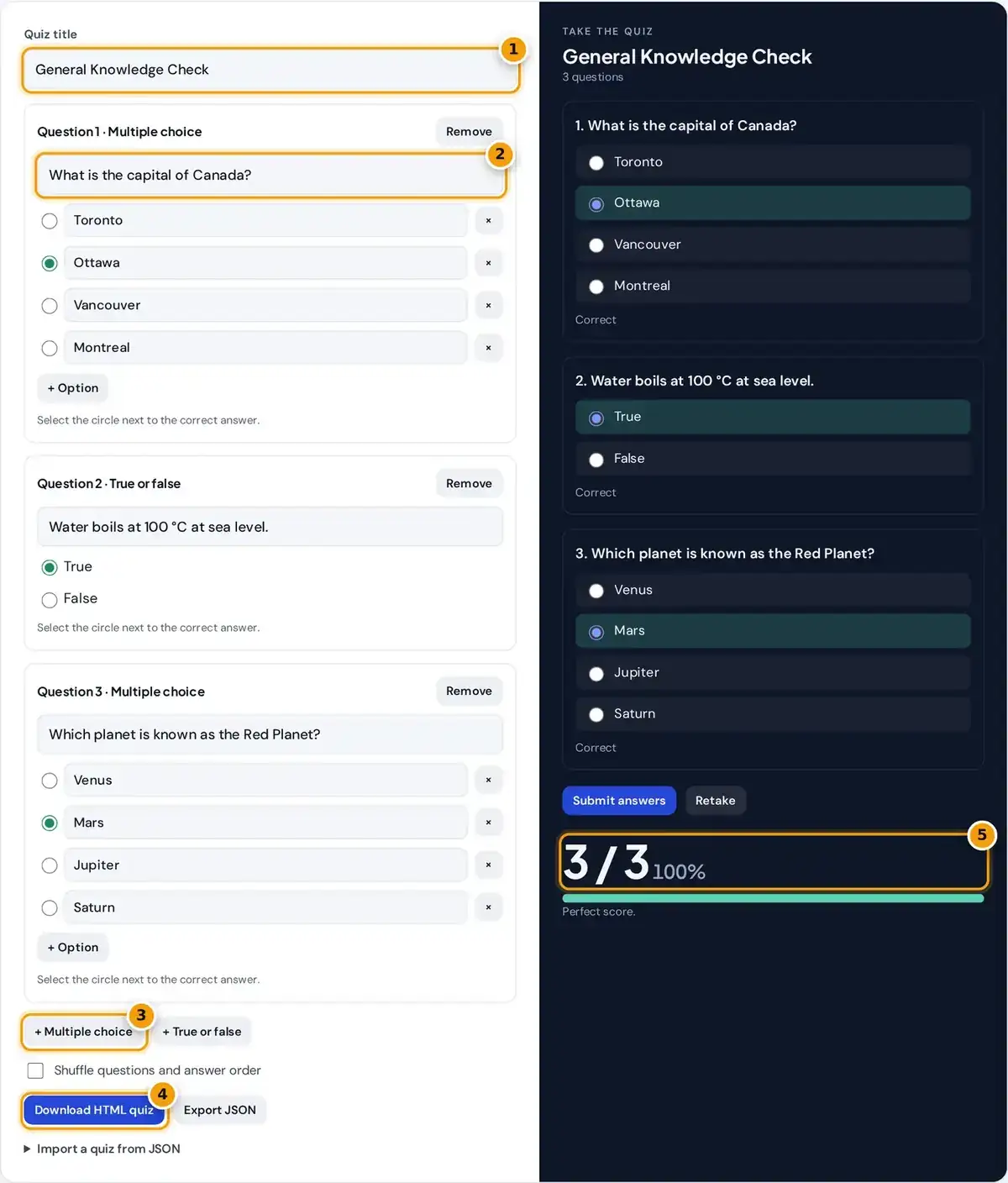
- Give your quiz a title.
- Write each question, add options and select the circle next to the correct answer.
- Add more multiple choice or true or false questions, and turn on shuffling if you like.
- Download a standalone HTML quiz to share, or export it as JSON.
- Take the quiz in the preview and see your score instantly.
Give your quiz title first, then simply edit the sample questions or add new ones with the Multiple choice and True or false buttons. Each multiple choice question can have between 2 and 6 options.
Type the options and select the circle beside the correct answer. The quiz maker builds a playable version in the dark panel as you work, so you can take the quiz and test it immediately.
Press Submit answers to see the score, then Retake to try again. When you are happy with it, download the HTML quiz for students or export JSON to keep an editable copy for later changes.
How the Quiz Score Is Calculated
Each question is worth one point, and an unanswered question scores zero. The score shows correct answers out of the total, plus a percentage rounded to the nearest whole number, with a colored progress bar.
Feedback appears under every question after you submit. Your choice is marked right or wrong, and the correct answer is highlighted in green, so students learn from mistakes instead of just seeing a final number.
If a question has no text or no correct option selected, the quiz maker shows an error naming that question, such as Question 4 needs text, before scoring. That catches any unfinished questions early on.
Worked Example: The Sample Quiz
Here is a worked example using the sample quiz, which has three short questions. Suppose you answer Ottawa for the capital of Canada, True for the boiling point question and Venus for the Red Planet.
That gives 2 out of 3 correct. The percentage is 2 ÷ 3 × 100 = 66.7%, which is displayed as 67%. The Mars option is highlighted green as the correct answer, and Venus is marked in red.
Press Retake, choose Mars, and the score becomes 3 out of 3, or 100%. Add a fourth question with the True or false button and the count updates to four questions, ready for its text.
Shuffling Questions and Answers
Tick Shuffle questions and answer order to randomize the question order and the multiple choice options each time the quiz loads or is retaken. True or false options always stay in the True, False order.
Shuffling makes copying from a neighbor harder, discourages memorizing positions such as the answer is always B, and gives students a fresh attempt when they retake the same practice quiz several times before a test.
The downloaded HTML quiz keeps the same shuffle setting, so each student who opens the file sees a different order. It reduces casual cheating, although it is no real substitute for a properly supervised exam.
Export and Import Formats
Two formats cover sharing and editing. The HTML quiz is a single file containing the questions, answers and scoring script, and the JSON file stores the quiz so you can reopen and edit it later.
| Format | Best for |
|---|---|
| HTML quiz | Sharing with students. It works offline in any browser, with no account. |
| JSON | Saving your work to edit later, or sharing with another teacher who uses this quiz maker. |
Send the HTML file by email, upload it to a learning platform or open it offline. Students need no account and no app. The quiz scores itself in the browser as soon as they submit.
A JSON quiz, following the IETF JSON standard, holds a title and a list of questions. Each has a type, the text, the options and the index of the correct option, counting up from zero.
Writing Good Quiz Questions
Start from your written learning objectives and test one idea per question. A single question that checks two separate facts at once makes it hard to see which one a student actually missed or misunderstood.
Write a clear stem, then make wrong options plausible. Good distractors come from common mistakes, a point stressed in University of Michigan guidance on multiple choice design, rather than obviously silly answers that nobody picks.
- Put the key word of the question in the stem, not repeated in every option.
- Use true or false only for clear facts without exceptions.
- Keep each question short enough to read in a few seconds.
Keep options a similar length and avoid all of the above, which quietly rewards partial knowledge. Statements with exceptions, or words like always and never, work better as multiple choice questions than true or false.
Ways to Use a Quiz in Class and at Work
Teachers often use short quizzes in the classroom for warm-ups, exit tickets and homework checks. Frequent low-stakes testing is a form of retrieval practice, which helps students remember material longer than simply rereading their notes.
Students can build a practice quiz from their own notes and share the file with a study group. Writing the questions is itself a strong revision method, since it forces you to decide what matters.
At work, a quick quiz checks understanding after onboarding or safety training and reveals knowledge gaps before they cause problems. Because the file needs no login, it suits teams that use many different software systems.
Limits and Privacy
The quiz maker runs entirely in your browser, and nothing is ever uploaded. The page does not save your work automatically, so export JSON before closing the tab, or you will lose any unsaved changes.
Answers are stored inside the exported HTML file, so a determined student could read them in the page source. Use it for practice and review rather than high-stakes exams that need proper proctoring and supervision.
This tool makes scored quizzes only. It has no personality quiz outcomes, live leaderboard or poll mode, and it does not collect results centrally, so ask each student to report or screenshot their final score.
Frequently asked questions
How do I make a multiple choice quiz?
Click Multiple choice, type the question and options, and select the circle beside the correct answer. Repeat for each question, then take the quiz in the preview or download it as an HTML file.
Can students take the quiz without an account?
Yes. Download the HTML quiz and share the file by email or a learning platform. It opens in any browser, works offline and scores itself, with no sign-up for you or your students.
Can I shuffle the questions?
Yes. Tick the shuffle option to randomize the question order and the multiple choice options each time the quiz loads or is retaken. True or false options always stay in the same order.
How do I edit a quiz later?
Export it as JSON and keep the file. Next time, open the import section and either load the file or paste its contents, and every question returns ready to edit.
Is my quiz stored anywhere?
No. Everything happens in your browser and nothing is uploaded or saved automatically. Export JSON to keep a copy, because closing the page without exporting loses your questions.
What is the difference between a quiz and a poll?
A quiz has right and wrong answers and produces a score, while a poll collects opinions with no correct choice. This tool makes scored quizzes with multiple choice and true or false questions.