Every phone and computer sold in the last few years can turn a photo into a PDF without any extra app, but the option is usually hidden inside the Print menu, where few people think to look. This guide walks through the built-in method on iPhone, Android, Windows and Mac, then shows the fastest browser option: the free JPG to PDF converter, which combines several photos into one PDF, sets the page size and tells you the print resolution before you send anything. You will also learn which page size and resolution to pick so scans stay readable and under upload limits.
Quick answer: To turn an image into a PDF, open it, choose Print and pick Save as PDF (Android, Mac) or Microsoft Print to PDF (Windows). On iPhone, select photos in the Files app and tap Create PDF. In any browser, add the images to a JPG to PDF converter, choose US Letter and click Create PDF.
Why Turn an Image into a PDF?
A PDF is the safest format for anything someone else has to open, print or file. Benefit portals, landlords, schools, insurers and employers often accept PDF uploads only, because the format fixes the page size, keeps several pages in order and looks the same on every device. A photo of a signed form saved as a JPG can open sideways, at the wrong size or as five separate attachments. The same photos saved as one PDF arrive as a single, tidy document.
PDF is also the standard for long-term records. The US National Archives file format tables list PDF/A among the accepted formats for digitized documents, so converting important paperwork to PDF is a sensible habit even when nobody has asked for it.
How Do You Turn a Photo into a PDF on iPhone?
The quickest route on an iPhone or iPad is the Files app, which has a Create PDF action built in.
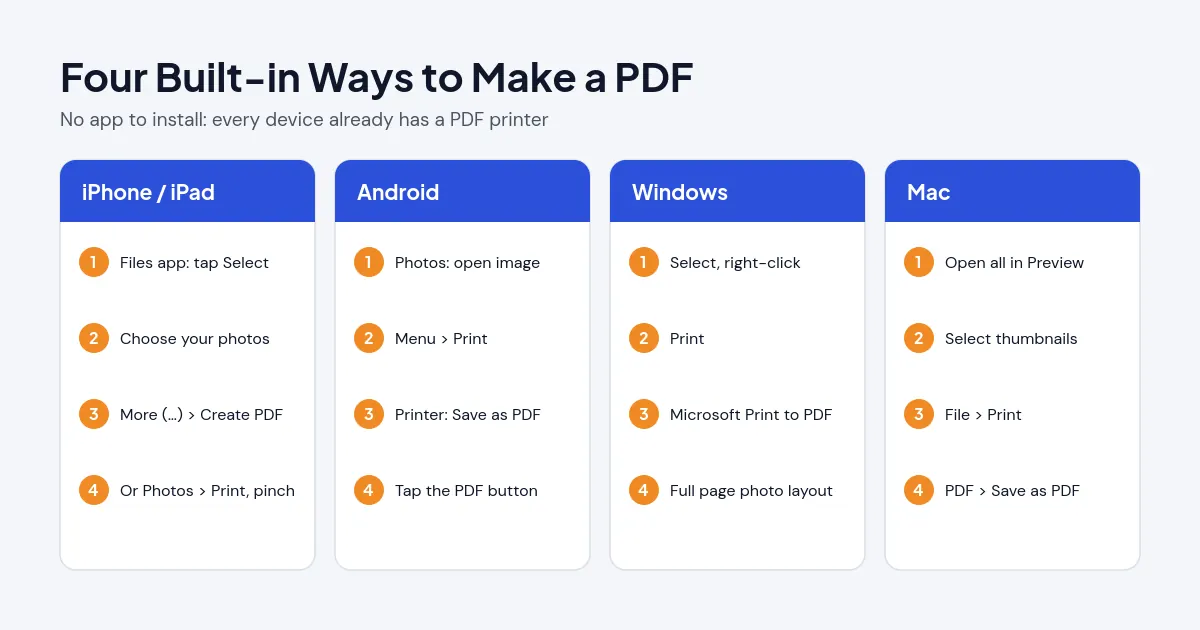
- In Photos, select the pictures, tap Share and choose Save to Files.
- Open the Files app, go to that folder and tap Select at the top.
- Tap each photo in the order you want the pages, then tap the More button with three dots.
- Choose Create PDF. A new PDF appears in the same folder, ready to share.
There is a second trick that works straight from the Photos app. Select the photos, tap Share, then Print. On the print preview, spread two fingers apart on the first page as if zooming in. The preview opens as a full PDF, and the Share button lets you save it to Files or send it by email. Both methods keep the original photo quality.
One snag: iPhones save photos as HEIC by default. Files and Print handle that fine, but if you later upload the photos to a website, set Settings, Camera, Formats to Most Compatible so new photos are saved as JPG.
How Do You Convert an Image to PDF on Android?
Android has a system-wide Save as PDF printer, so any app that can print can make a PDF.
- Open the photo in Google Photos or your gallery app.
- Tap the three-dot menu and choose Print.
- At the top, change the printer to Save as PDF and set the paper size.
- Tap the round PDF button, pick a folder and tap Save.
Google Photos prints one photo at a time this way. To put several photos in one PDF, select them all first and use Print from the share menu, or use a browser converter (covered below). For paper documents, the Google Drive app has a Scan button that photographs pages, straightens them and saves a multi-page PDF directly.
How Do You Make a PDF from Images on Windows and Mac?
On Windows 10 and 11, the Microsoft Print to PDF printer is installed by default. In File Explorer, select the images, right-click and choose Print (on Windows 11, choose Show more options first). In the Print Pictures window, set the printer to Microsoft Print to PDF, choose the paper size and pick the Full page photo layout. Untick Fit picture to frame if you do not want the edges cropped, then click Print and give the file a name. Each image becomes one page.
On a Mac, select the images in Finder and open them together in Preview. In the sidebar, press Command and A to select every thumbnail, drag them into the order you want, then choose File, Print. In the bottom left of the print dialog, open the PDF menu and choose Save as PDF. Preview combines all the selected images into one document.
How Do You Convert Images to PDF in a Browser?
A browser converter is often faster than the Print menus, and it works the same on a Chromebook, a work laptop where you cannot install software, or a phone. The ToolVasta image to PDF converter runs entirely on your device, so the photos are never uploaded.
- Open the converter and drop your JPG, PNG or WebP images on the box.
- Use the arrows to put the pages in order and remove any you do not need.
- Pick US Letter, A4 or Legal, an orientation and a margin.
- Click Create PDF and the file downloads straight away.
The useful extra is the result panel. It shows the scale applied to each photo and the print resolution in dots per inch, so you can see at a glance whether a scan will print sharply. It also leaves your JPG data untouched on the Original quality setting, which avoids the gradual blurring you get when a photo is recompressed again and again.
What Page Size and Resolution Should You Use?
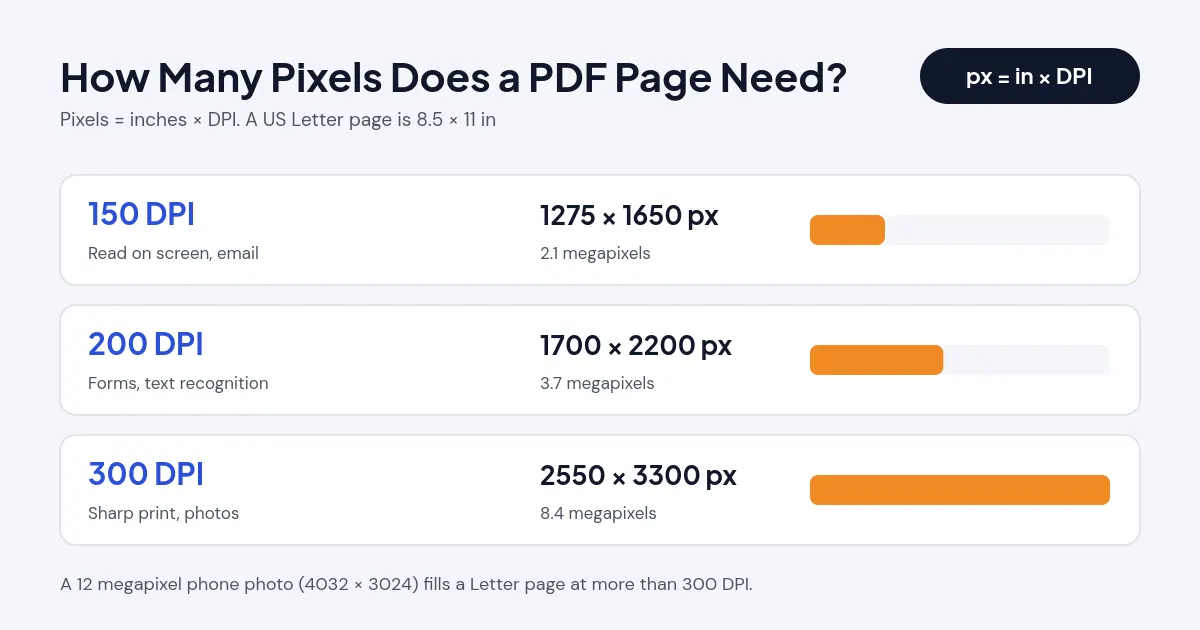
Use US Letter (8.5 × 11 in) for anything filed in the US or Canada, A4 (210 × 297 mm) for most other countries, and Legal (8.5 × 14 in) only when a form asks for it. Resolution then decides how sharp the page looks. The number of pixels you need is simply the page size in inches multiplied by the dots per inch.
| Use | Resolution | Pixels for a Letter page |
|---|---|---|
| Reading on screen, email | 150 DPI | 1275 × 1650 |
| Forms, text recognition | 200 DPI | 1700 × 2200 |
| Sharp prints and photos | 300 DPI | 2550 × 3300 |
A modern phone camera takes photos of about 12 megapixels (4032 × 3024), which is more than enough: placed on a Letter page with half-inch margins, it prints at around 400 DPI. Screenshots are a different story. A 1170 × 2532 iPhone screenshot fills only 4.6 × 10 in at about 250 DPI, which is fine on screen but slightly soft on paper.
File size matters as well, because many upload forms stop at 2 MB, 5 MB or 10 MB. Original-quality phone photos are typically 2 to 4 MB each, so a five-page PDF can easily reach 15 MB. Recompressing at 75% quality usually brings each page under 1 MB with no visible loss on a text document. For long-term storage, the Library of Congress describes PDF/A, the archival version of PDF, which some government and legal systems require.
How Do You Make a Scanned Photo Look Clean?
Most phone scans fail for the same reasons: shadows, a tilted page and paper that looks grey instead of white. Shoot in daylight from directly above, fill the frame with the page and crop out the table before converting. Then check how white the paper really is. Open a scan in the free color picker, choose Pick from an image and tap a blank part of the page. A clean scan reads close to #FFFFFF; a shadowed one often reads around #C8C4BA, which prints as a dull grey box. If you see that, raise the brightness or use the document scan mode in your camera app and take the photo again.
The same tool helps when you add a cover page or a colored header to a PDF. Brand guides often list colors as RGB values only, such as 36, 70, 214. Design apps and website builders usually want a HEX code, and the RGB to HEX converter turns those three numbers into the matching code, #2446D6, so the cover matches your letterhead exactly.
Finally, if you have many small items such as receipts or both sides of an ID card, combine them onto one page with the photo collage maker first. Fewer pages means a smaller file and a reviewer who can see everything at once.
Frequently asked questions
How do I turn a picture into a PDF for free?
Use the Print menu and choose Save as PDF or Microsoft Print to PDF, or the Create PDF action in the iPhone Files app. A free browser converter also works on any device and can combine several pictures into one PDF.
How do I combine several photos into one PDF?
Select all the photos before you print or convert. On iPhone, select them in the Files app and tap Create PDF. On a Mac, open them together in Preview and save as PDF. In a browser converter, add them all and set the order with the arrows.
Does converting a JPG to PDF reduce quality?
Not if the converter copies the JPG data unchanged, as the Print to PDF options and the ToolVasta converter on Original quality do. Quality only drops when you choose a smaller file size, which recompresses the image.
What resolution should a scanned document be?
200 DPI is enough for forms and text, and 300 DPI is the usual standard for sharp prints. For a US Letter page, that means at least 1700 × 2200 pixels, or 2550 × 3300 pixels for print quality.
Why is my PDF too large to upload?
Full-size phone photos are 2 to 4 MB each and the PDF keeps all that detail. Convert again with a medium quality setting, or crop the photos first, to bring each page well under 1 MB.